画像のベクター化とは?ピクセルを編集可能なパスに変える仕組み
画像のベクター化の役割、ラスターのピクセルが編集可能なSVGパスになる仕組み、トレースが役立つ場面、高解像度ラスターを選ぶべき場面を解説します。
ロゴを拡大したときに、ぼやけた四角の集まりになってしまった経験があるなら、それがベクター化で解決する問題です。
ラスターとベクターの違い
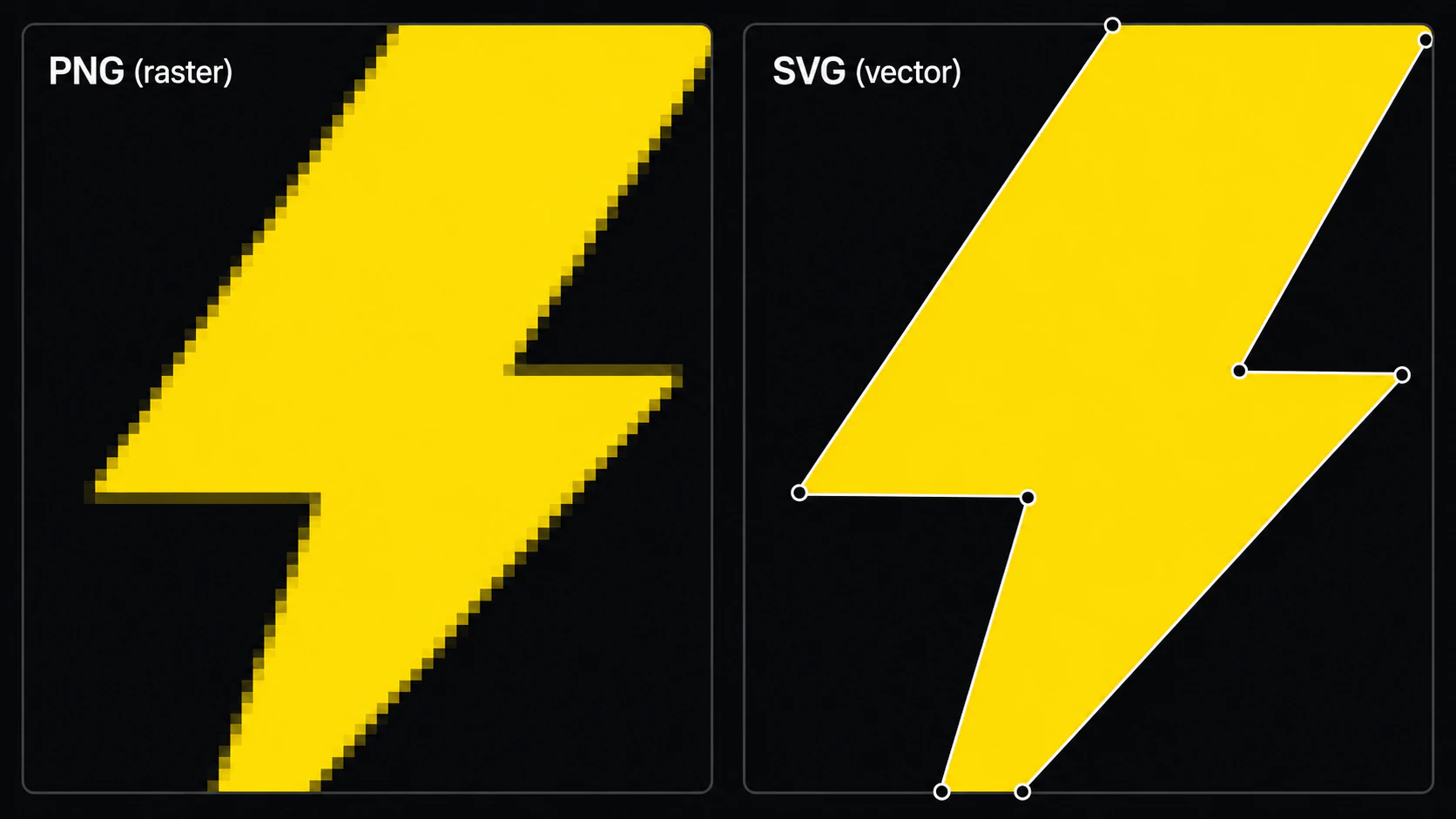
ラスター画像であるPNG、JPG、GIFは、ピクセルの格子上に画像のサンプルを保存します。画像のピクセル寸法は固定されているため、大きく拡大するとぼやけたり、格子が見えたりします。たとえばW3CのPNG仕様は、PNGを走査線とピクセルで構成されるラスター画像形式と定義しています。PNG 3標準を参照してください。
古い.bmpファイルもラスター画像の一例で、整える際には独自の注意点があります。BMP画像をベクター化する手順を使うと、意図した硬い輪郭を保ちながら、古いファイルの欠陥までパスにするのを防げます。
AVIFで保存した作品には、AVIFからSVGへの変換ツールを使い、生成されたパスを確認してください。元の形式によって変わるのはファイルの開き方であり、その作品がトレースに向いているかどうかではありません。
ベクター画像は、「ここからそこまで曲線を描き、内側を赤で塗る」といった指示で形状を記述できます。こうしたベクター要素は、ラスター特有のピクセルの粗さを生じずに、異なるサイズで描画できます。ただし、ベクター形式の中にはラスター画像を埋め込めるものもあるため、拡張子が.svgであるだけでは、見えている要素がすべてベクターだとは限りません。(W3C SVG 2、SVGの埋め込みコンテンツ)
大きな違いは、ラスターの細部はピクセルの格子に依存し、ベクターの形状は解像度に依存しないことです。
「ベクター化」の意味
ベクター化は、画像トレースとも呼ばれ、ラスター画像をベクター図形として再構築する処理です。出力されるベクターファイルでは、元画像の各色領域が、1つ以上の塗りのあるパスになります。
適切に処理できれば、次のような結果が得られます。
- 再構築したベクター要素を、ラスター特有のピクセルの粗さを生じずに拡大縮小できます
- Illustrator、Figma、Inkscape、Affinity Designerなどで図形ごとに編集できます
- 単純な作品では、パスや効果の複雑さによっては元のラスター画像より小さなファイルになります
- ファイル要件を確認すれば、パスや編集可能な図形を必要とする作業に使えます
デザイナーがベクター化する理由
よくある理由には、次のようなものがあります。
- 生成した作品を整えるため。 現在のOpenAIとStabilityの画像APIは、PNG、JPEG、WebPなどのラスター出力を案内しています。その後の作業で編集可能なパスが必要なら、そのラスター画像をトレースするか、手で描き直す必要があります。(OpenAI Images API、Stability AI API、印刷用にAIアートをベクター化する方法)
- 古いロゴを再活用するため。 小規模な事業者では、元のロゴのJPGしか残っていないことがよくあります。ベクター化すれば、現在のさまざまな用途に合わせて拡大縮小できる、きれいなSVGを作れます。
- 印刷やグッズ制作のため。 ベクターの元データは、拡大縮小するロゴやフラットな図柄に役立ちますが、高解像度のラスター画像を受け付ける業者も多くあります。業者が示す商品別の仕様に従ってください。たとえばPrintfulは、ほとんどの印刷商品でPNGまたはJPEGを推奨しています。(Printfulのファイル案内)
- カットや加工のため。 カット作業ではベクター図形をレイヤーや加工経路の形状として利用できますが、ラスター彫刻やプリントしてからカットする作業ではベクター化が不要な場合があります。Cricutは、SVGとDXFをレイヤー付きのベクターアップロード、ラスター形式を単一レイヤーの画像アップロードとして説明しています。(Cricutのアップロード案内、Cricut用SVGの準備、レーザーカット用に画像を変換する、3Dプリント向けの解説)
難しいのは編集のしやすさ
ベクターファイルを作ることと、特定の作業で役立つベクターファイルを作ることは違います。(AIベクター化ツールの比較をご覧ください。)
自動トレースツールは、ラスター画像の特徴をベクターパスで近似します。元画像、アルゴリズム、設定によっては、次のような結果になります。
- 1つの図形に数百、数千ものアンカーポイントが付く
- 滑らかな円弧ではなく、ノイズに合わせて揺れる曲線になる
- 見た目には1つの図形が、重なり合う多数の断片に分かれる
技術的にはベクターでも、編集しにくい場合があります。Adobeの画像トレース設定は、パスの適合、コーナー、ノイズ、色、複雑さの間で調整を行います。一方、Potraceは、ビットマップの輪郭から多角形を基に曲線を当てはめる手法を説明しています。(Adobeの画像トレースオプション、Potraceの論文)
優れたベクター化ツールが目指すのは、デザイナーが最初から描いたようなパスです。ノードが少なく、曲線がきれいで、見える領域ごとに1つの図形がある状態です。
AIはどこに関わるのか
Potraceなどの従来のトレースツールは、公開された決定論的な処理段階を使い、ビットマップの輪郭からパスを導き出して最適化します。最近の製品は異なるアルゴリズムや学習モデルを使うことがあり、製品と入力画像によって動作が異なります。
実用上の判断基準は、製品に「AI」という表示があるかどうかではありません。意図したシルエットと色が、扱いやすいパスとレイヤーで保たれているかどうかです。同じ元画像で試し、SVGを確認し、ノード数と編集のしやすさを比べてください。
PerfectVectorは、ラスターの作品を編集可能なベクター図形として再構築することを目指して設計されています。各結果を元画像と照合し、再現性や制作上のリスクが重要な場合は、別の方法で作ったパスとも比較してください。
ベクター化が適する場合と適さない場合
ベクター化が特に向いているのは、次のような画像です。
- ロゴやワードマーク
- アイコンやイラスト
- 色の領域が明確な、様式化されたグラフィック
- 手描きの線画
複雑な場面を写した写真にはあまり向きません。森の写真には色の領域やグラデーションが非常に多くあるため、トレースすると巨大なファイルになるか、情報を失います。パスが数百万になる場合もあります。写真は通常、ラスターのまま使うのが適切です。
試してみる
ベクターに変えたいラスター画像があるなら、変換ツールにPNGまたはJPGを読み込み、プレビューでシルエット、色、パスがどのように再構築されるか確認してください。ベクター化とプレビューは無料で、1クレジットでSVGを取得できます。AIで生成した作品については、印刷用にAIアートをベクター化する方法をご覧ください。
よくある質問
ベクター化と画像トレースは同じですか? はい。「画像トレース」はベクター化の別名であり、ラスター画像を編集可能なベクター図形として再構築することです。
どの画像形式をベクター化できますか? 一般的なラスター入力はPNGとJPGです。WebP、GIF、TIFFなどの対応状況は、ベクター化ツールによって異なります。できるだけきれいな元画像を使い、トレースされたシルエット、色、パスを確認してください。(品質を落とさずにPNGをSVGへ変換する方法。)
写真をベクター化できますか? 通常はおすすめしません。写真はグラデーションや色の領域が多すぎて、きれいな図形にできず、巨大なファイルになったり、ポスタライズしたような見た目になったりします。ベクター化はロゴ、アイコン、イラスト、線画に適しています。
変換後のSVGは何で開けますか? Adobe Illustrator、Figma、Sketch、Inkscape、Affinity Designer、Canvaなど、多くのベクター対応ツールでSVGを扱えます。ただし機能の扱いは異なるため、実際に使うアプリとバージョンでファイルを試してください。
無料ですか? ベクター化とプレビューは無料で、1クレジットで完成したSVGを取得できます。取得前に内蔵エディターを使い、色とパスが作業に合うか確認してください。
出典
- W3C:Portable Network Graphics (PNG) 仕様、第3版:PNGのラスター表現と可逆圧縮を定める現行標準です。
- W3C:Scalable Vector Graphics (SVG) 2:SVGの形状、パス、描画色、レンダリングを定義する標準です。
- Adobe Illustrator:画像トレースパネルのオプション:再現性と複雑さの調整を示す公式トレース設定です。
- Selinger:Potrace、多角形に基づくトレースアルゴリズム:従来型のビットマップからベクターへの変換アルゴリズムを説明する一次技術資料です。
- Cricut:Design Spaceに画像をアップロードする方法:カット作業でのラスターとベクターのアップロード、およびレイヤーの動作を説明する公式資料です。
- Printful:印刷ファイルをどう準備すればよいですか?:多くの印刷作業がラスター画像を受け付けることを示す業者の一次資料です。
編集可能なパスが必要な、フラットなラスター作品がありますか?PerfectVectorで変換し、プレビューを元画像と比較して、図形やノードの配置が次のツールに合う場合にだけSVGを取得してください。意図的に作風を変えたトレースにしたい場合を除き、写真はラスターのまま残してください。