PerfectVector
By Claire Yoon11 min read

What File Format Should a Logo Be? A Practical Guide

Which logo file format for web, print, embroidery, or a vendor request, in one decision table, plus how to recover a vector master when all you have is a PNG.

On this page

There's no single correct logo file format. The right one depends on the destination and the receiver's published requirements. A website may accept SVG, a print vendor may request PDF, EPS, or AI, and a social platform usually expects raster artwork. What matters is keeping one editable vector master and exporting tested delivery copies from it as needed.

If the vector master contains live type, preserve the font information there and make an outlined delivery copy. The SVG font-substitution guide shows when to keep editable text and when to convert it to paths.

This guide does two things the usual format roundups skip. It gives you a straight use-by-use answer, and it covers what to do when the master file you're supposed to keep doesn't exist.

Short on time? Match the format to the job
  • Website, app, email signature: SVG if your platform allows it, PNG if it doesn't.
  • Print, signage, merch, a printer asked for "vector": EPS or print-ready PDF. (The sign-shop version of this ask has its own walkthrough.)
  • Social media avatars and posts: high-resolution PNG with a transparent background.
  • Editing or making variations: the source file (AI, or a layered SVG/EPS).
  • All you have is a PNG and someone needs a vector? That's a recovery job, covered below.

First, the only distinction that matters: vector vs raster

Every logo format is one of two kinds, and once that clicks the rest is easy.

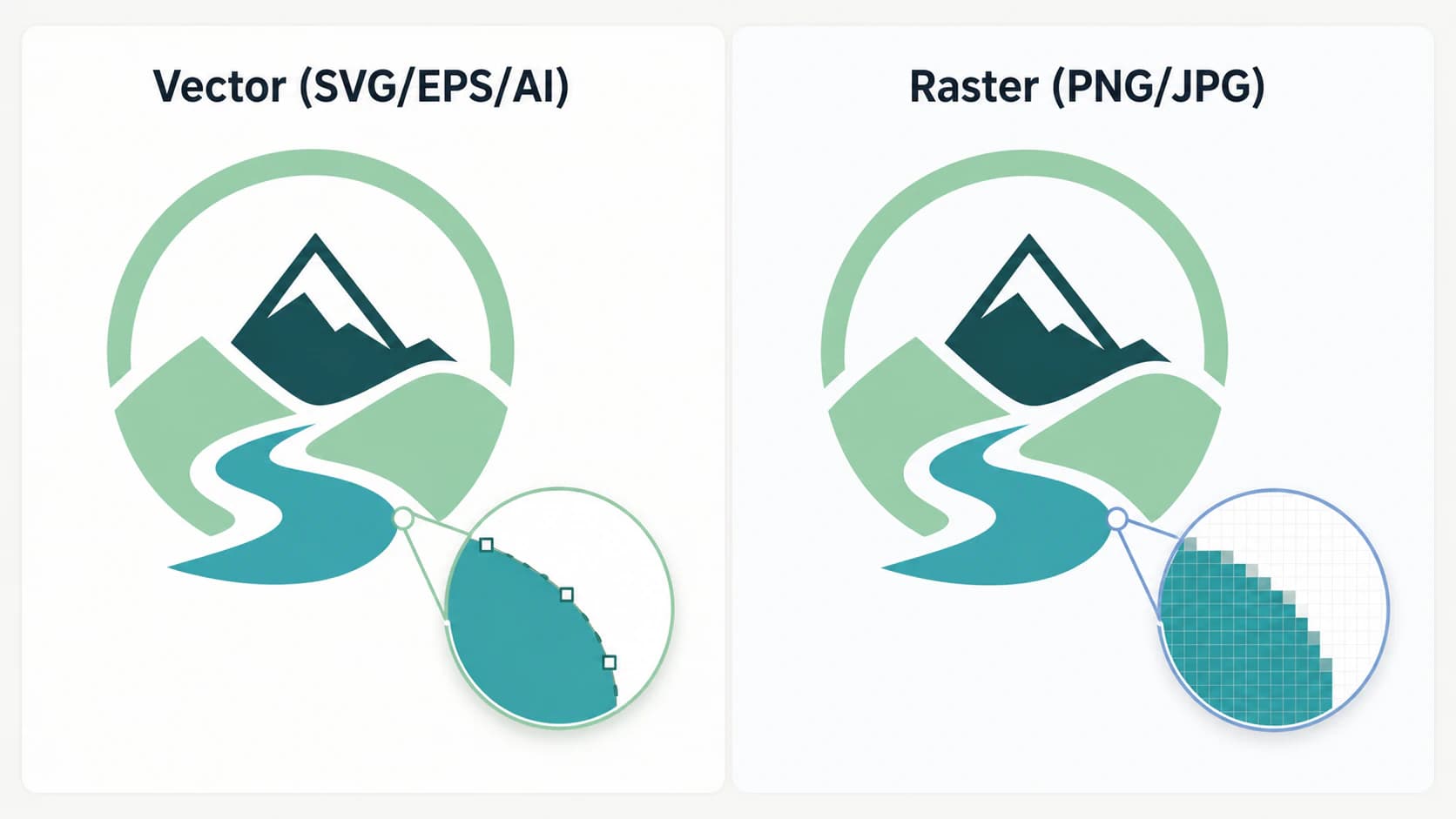
Vector files store artwork as paths and shapes rather than a fixed pixel grid, so the geometry can be resized without pixelation. Adobe's raster-and-vector overview lists AI, EPS, SVG, CDR, and PDF as common vector formats, while noting that actual documents can mix vector and raster content.

Raster files store it as a grid of pixels, sharp at their saved size and blocky if you push past it. They're your ready-to-use digital files. PNG, JPG, and WebP are raster.

Vector vs raster
A logo shown as a crisp scalable vector on the left and as a pixelated raster that breaks up when enlarged on the right
The same logo: a vector stays crisp at any size, a raster breaks up when you scale it past its resolution.

That one split explains many everyday logo headaches. A logo that looks pixelated is often a raster stretched past its useful pixel dimensions. Adobe's current format documentation describes JPEG as lossy and PNG as lossless with transparency support. A vendor rejecting a file may also reflect color, font, bleed, or application-specific requirements, so ask for the exact specification.

The formats, briefly

You only really meet six.

FormatKindBest forDon't use for
SVGVectorWebsites, apps, faviconsSome print vendors won't take it
EPSVectorLegacy print and vendor workflows that request itRoutine web delivery
AIVectorThe editable source/masterSharing or uploading (needs Illustrator)
PDFVector or rasterSending to printers, portable sharingWeb use; check it's actually vector
PNGRasterWeb, social, email, transparent placementPrint, large sizes, scaling up
JPGRasterQuick previews, email where background doesn't matterLogos generally (no transparency, lossy)

Two honest notes the spec sheets gloss over. A PDF can be either vector or raster depending on how it was saved, so "I have a PDF" doesn't guarantee you have a usable master. And AI and EPS are the two you keep even if you can't open them yourself, because everything else exports from them.

An EPS extension is not proof that every object inside is vector either. If a vendor questions the file, check whether the EPS contains real paths or an embedded image before you resend it.

Which format for which job

Here's the part the format roundups bury under definitions. Start from what you're doing, not from the file.

You need it forUseNotes
Your website logoSVGTiny, razor-sharp on any screen. If your CMS rejects it, use a high-res PNG
A faviconSVG or PNG setModern browsers take SVG; older ones want PNG sizes
Email signaturePNGTransparent background, fixed display size
Social profile and postsPNGHigh-res, transparent; platforms compress, so upload large
Business cards, flyers, printVendor-specified PDF, EPS, or AIFollow the printer's color, bleed, font, and PDF preset requirements
Signs, banners, vehicle wrapsEPS or PDFScales to any size with no quality loss
T-shirts and merch (screen print)EPS or AIOne vector layer per ink color
EmbroideryVendor-specified source, then a stitch fileArtwork must be digitized for the machine; accepted source files vary by provider
Laser cutting or vinylSVG or another vectorClosed vector paths the machine can follow
Editing the logo or making variantsAI, or a layered SVG/EPSAlways edit the master, never a flattened raster

If a vendor just says "send vector," ask which formats and settings it accepts. If a website accepts SVG, it is usually the most flexible logo delivery format; use PNG when the platform rejects SVG.

Embroidery is especially vendor-specific. Printful, for example, says it does not accept outside digitized stitch files and instead recommends a high-resolution transparent PNG that its team digitizes. Another embroidery shop may ask for AI, PDF, or a machine stitch format. The provider's specification outranks a general logo-format table.

What to do when all you have is a PNG

This is the situation no format guide wants to talk about, and it's the most common one. You don't have the AI or EPS master. Maybe the logo was made years ago, maybe in Canva, maybe generated by an AI logo maker that only gave you a PNG, maybe it just came to you as a file someone pulled off the old website. Now a printer or a merch supplier wants vector, and "keep your master file safe" is useless advice when you never had it.

If the only surviving copy is an old Windows icon, start with the ICO-to-editable-SVG recovery workflow. An ICO may contain a larger representation than the favicon-sized preview you see.

You have two ways out: recreate the vector, or recover it.

Recreate means a designer redraws the logo as vector from scratch, or you do it yourself. You'll see this stated as the only option. The widely-repeated version goes further and claims you simply can't convert a raster logo to vector automatically, that any tool promising "PNG to SVG" is faking it. That's half right, and the half it gets wrong matters.

The warning is real for bad converters. Some so-called converters just wrap your PNG inside an SVG file. The result has an .svg extension but it's still pixels in a costume, and it blurs the moment you scale it. That's the "fake vector" worth avoiding: open it, zoom in, and if the edges go blocky you have an embed, not a real vector.

If a printer specifically asks you to convert a JPG to EPS, use the same rule: check whether the EPS contains real paths before you send it.

But a real AI vectorizer doesn't wrap, it traces. It rebuilds the logo as actual editable vector paths, the same kind a designer would draw, which scale cleanly and open in Illustrator, Figma, or Inkscape. For a logo, which is usually flat shapes and clean edges, that recovery works well and takes seconds instead of an afternoon of redrawing. Whether you should recreate or recover comes down to how clean your raster is and how complex the mark is, which is exactly what the how to vectorize a logo guide walks through.

What this looks like with PerfectVector

If your starting point is a raster logo and a vendor needs vector, PerfectVector is built for that recovery. It rebuilds the logo as clean, low-node vector paths you can export as SVG for the web or hand to a printer, and because the paths are real, you get an editable master back rather than a pixel image in an SVG wrapper.

Before
A logo that exists only as a low-resolution PNG, zoomed to show soft pixelated edges
All you have: a raster PNG with soft, pixelated edges.
After
The same logo recovered as a clean editable vector by PerfectVector, with smooth low-node paths shown
Recovered as clean, editable vector paths you can export to any format.

You can turn your PNG logo into a real vector and check the paths yourself, or use the general image to vector converter for non-logo art. Convert your first images free, no credit card required. Once you have the clean vector back, you're in the easy position the format guides assume you started in: one master, every other format a quick export away.

A few honest limits

  • A vectorizer is only as good as the raster you feed it. A crisp, high-contrast logo recovers cleanly. A tiny, blurry, or heavily compressed JPG may need a designer's hand instead.
  • Photographic or gradient-heavy logos don't vectorize well. If the mark is really a photo or a complex gradient illustration, keep it raster and use high-resolution PNGs.
  • Recovered isn't always pixel-identical. Vectorizing rebuilds the shapes faithfully, but for a trademark where every curve must match exactly, have a designer verify the result against the original.
  • One format genuinely can't do everything. Resist the urge to use a single PNG for print and a single EPS for web. Keep the master, export per use.

FAQ

What file format is best for a logo? There isn't one best format; it depends on use. Keep an editable vector master and export tested delivery copies: SVG for websites that allow it, the exact PDF/EPS/AI specification a printer requests, and an appropriately sized PNG for raster-only platforms. If a vendor asks for "vector," ask which format, color space, fonts, and export preset it needs.

Should a logo be PNG or SVG? For a website, SVG when your platform supports it, because it stays sharp at any size and loads fast. Use PNG when SVG isn't accepted, or for social media and email signatures, where its transparent background and fixed size are exactly what you want. SVG is vector; PNG is raster.

Is PNG or JPG better for a logo? PNG, in almost every case. PNG supports a transparent background, so your logo sits cleanly on any color, and its compression keeps edges sharp. JPG can't do transparency, which causes the white-box-behind-the-logo problem, and its lossy compression softens edges. Use JPG only for quick previews where the background doesn't matter.

Can I convert a PNG logo to a vector (SVG or EPS)? Yes, with a real vectorizer. Avoid converters that just embed the PNG inside an SVG file, since that doesn't actually scale. A genuine AI vectorizer traces the logo into true editable paths that you can export to SVG, EPS, or PDF. It works best on clean, flat logo art; very low-resolution or photographic logos may need a designer to redraw.

What logo files should I ask my designer for? Ask for the editable vector master, outlined delivery copies where appropriate, and ready-to-use exports for your actual channels: commonly SVG and transparent PNG for digital use plus the PDF/EPS/AI format your print vendor specifies. Also ask for color variants and font/license information. Preserve the editable master even when you distribute flattened or outlined copies.

Sources

  1. W3C — SVG 2 — SVG's vector, text, and raster-image content model.
  2. Adobe — Photoshop image essentials — raster/vector distinction and common vector formats.
  3. Adobe — Image file formats supported in Photoshop — JPEG and PNG compression and transparency behavior.
  4. Printful — Can I use my own digitized file for embroidery? — a vendor-specific example of PNG intake and in-house digitization.
  5. Printful — What is embroidery digitization? — conversion from source artwork to machine-readable stitch data.
  6. W3C — SVG embedded content — why an SVG can contain raster image data and still require inspection.

The format question is really a two-parter. If you have a vector master, match the file to the job using the table above and move on. If you don't, recover the vector first, then you're back to a simple export. Either way, the logo you keep is the editable one.

More from the blog

Turn your logo or artwork into a
clean, editable SVG