Convert WebP to SVG: Trace It Into Real Paths
A WebP is a raster image, so you can't save it as an SVG. You trace it. Here's how to turn a WebP into a clean, real vector, and how to avoid a fake one.
On this page
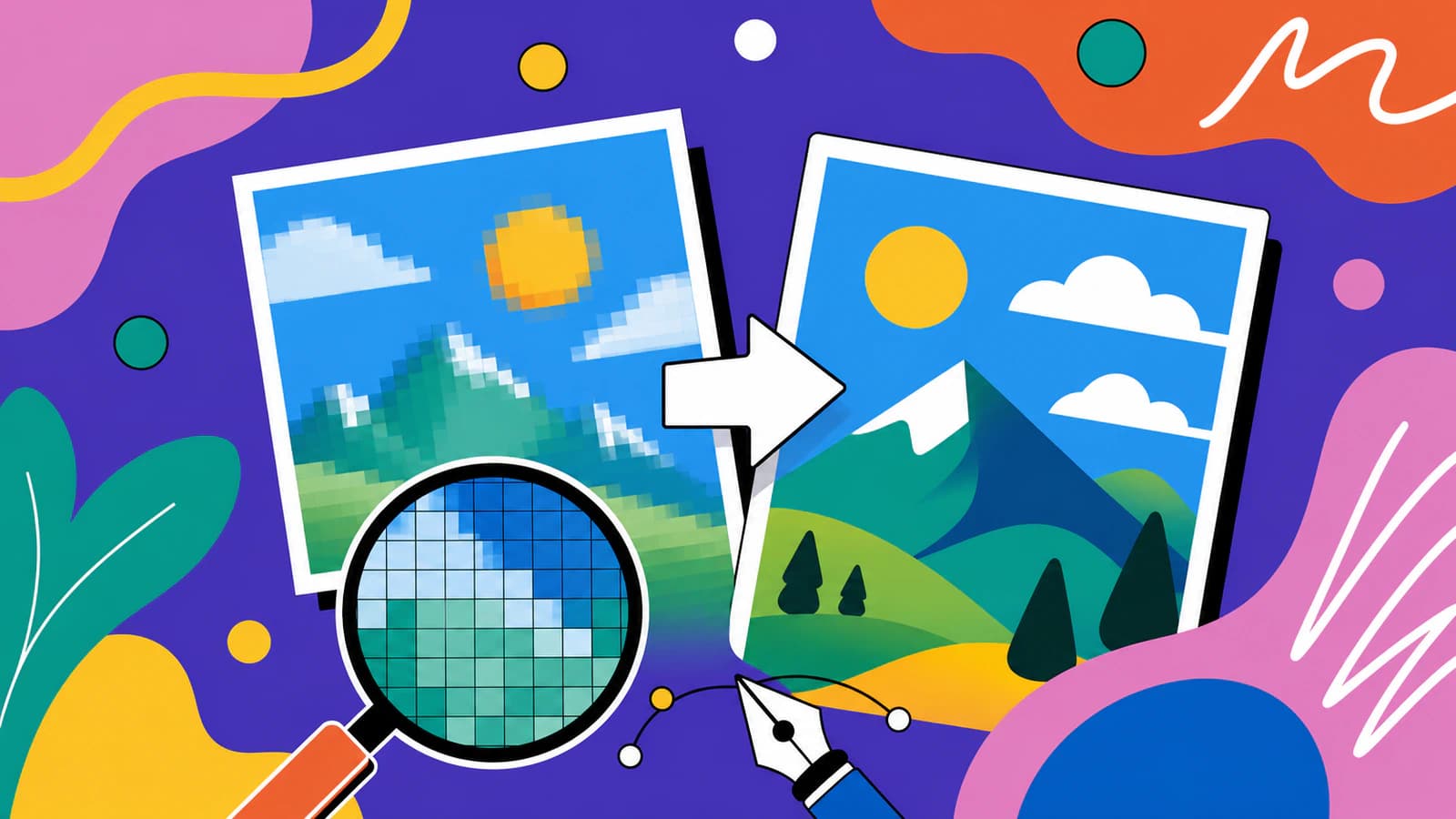
A WebP is a raster image, a grid of pixels like a JPG or PNG. Google's WebP documentation defines both lossy and lossless WebP as image-compression formats, while SVG defines vector graphics in terms of shapes and paths. So there's no "Save As SVG" that turns the pixels into vector geometry; the image has to be traced into shapes and paths first. (Google WebP overview; W3C SVG 2)
Here's how to actually convert a WebP into a clean, editable SVG, what to watch out for, and when you shouldn't bother.
If the source is AVIF rather than WebP, keep the original file and use the AVIF to SVG converter instead of adding a format-conversion step before tracing.
The quick version
- A WebP is raster, so it has to be traced into a vector instead of "saved" as one.
- Watch for fake vectors: a converter that embeds your WebP inside an
.svg(it still pixelates). - WebP can be lossy or lossless. A lossy one carries compression noise, so start with the cleanest source.
- Flat, high-contrast art converts well. Photos don't.
- Trace one with the WebP to SVG converter, then check that it's really editable.
First, the part most converters skip
It's worth being clear about what's actually happening, because the top search results aren't:
- A WebP stores pixels. The WebP format supports lossy and lossless compression, transparency, and animation, but it remains raster. See Google's WebP container specification.
- An SVG stores math: points, paths, and curves that stay sharp at any size.
Animation adds a separate decision: changing a moving raster into SVG does not automatically preserve its motion. The animated GIF-to-SVG guide explains the difference between tracing one frame and rebuilding an SVG animation.
If your source is a GIF and you want one editable still, use the GIF frame-to-SVG converter to choose that moment before tracing. Keep the animation separately when you still need its motion.
There's no lossless "convert" between the two. Going from WebP to SVG means redrawing the pixels as shapes, which is vectorization (tracing). That's why a real conversion needs a tracer rather than a file rename.
The trap to avoid: an SVG file is allowed to embed a raster image via its <image> element. Such a file has an .svg extension, but the embedded pixels are not converted into editable paths and can still blur when enlarged. See the W3C specification for embedded content in SVG. You want a tool that traces the image into real paths.
Lossy or lossless? It changes what you get
WebP comes in lossy and lossless variants, and which one you have affects the trace:
- Lossy WebP (the common web export) uses compression like a JPG, so it carries artifacts and soft, noisy edges. A trace picks those up, so start from the highest-quality version you have. (Same issue as converting a JPG to SVG.)
- Lossless WebP keeps edges crisp like a PNG, so it traces cleanly. (See converting a PNG to SVG without losing quality for the clean-source playbook.)
WebP also supports transparency through an alpha channel, so if your image has a transparent background, use a converter that preserves it. Otherwise you'll get an unwanted filled rectangle behind your shapes. See Google's WebP lossless bitstream specification.
How to convert a WebP to SVG, step by step
- Start with the best source. Use the original, highest-quality WebP. If it's a heavily compressed lossy file, expect a noisier trace.
- Use a real vectorizer instead of a generic file converter. You want a tool that traces the image into paths, not one that embeds the raster.
- Vectorize it. Drop the WebP into the WebP to SVG converter and let it rebuild the image as clean, low-node paths.
- Simplify the colors and keep transparency. Merge near-duplicate colors (lossy WebP adds a few), and make sure a transparent background stays transparent.
- Download and check it (see below).
What this looks like with PerfectVector
The goal with a WebP is a real vector: clean paths you can edit, not your pixels in disguise. That's what PerfectVector produces. It traces the WebP into smooth, low-node paths, keeps transparency intact, and gives you a color editor to merge the extra colors a lossy WebP introduces. You can convert a WebP to a clean SVG and inspect the paths yourself, and the preview is free; one credit unlocks the finished SVG.


Quick result check. A real WebP-to-SVG conversion has:
- Editable paths instead of the WebP embedded in an
.svg(zoom in and it should stay crisp). - A low node count, meaning clean curves rather than thousands of points (more on node count).
- Transparency preserved, if the source had it, with no stray background rectangle.
- A tidy palette, only the colors you meant rather than the extras a lossy WebP added.
When to skip the converter
Tracing isn't right for every WebP:
- Photographs and photo-real images flatten into posterized blobs, so keep them as raster.
- Gradient- or texture-heavy art loses its subtlety. Rebuild it as flat shapes if you need a vector.
- Tiny or heavily compressed WebPs can't be rescued. Find a better source or recreate the artwork.
As always, vectorization is for flat, illustrative art like logos, icons, and simple graphics, not photos. (New to the idea? Start with what image vectorization is.)
FAQ
Can I just save a WebP as an SVG? No. A WebP is a raster image (pixels), and an SVG is a vector (shapes and paths). No "Save As" turns one into the other. The image has to be traced into vector shapes, which is what a vectorizer does.
Why does my WebP still look pixelated after "converting" it to SVG?
A generic converter probably embedded your WebP inside an .svg wrapper instead of tracing it. That's a fake vector, and it still pixelates. Use a tool that traces the image into real, editable paths.
Can I convert a WebP to SVG for free?
Yes. Upload your WebP to a vectorizer, simplify the colors, and download the SVG. Vectorizing and previewing are free here; one credit unlocks the finished SVG. Just confirm the output is a real traced vector and not the WebP wrapped in an .svg.
Does WebP transparency carry over to the SVG? It can, if you use a converter that preserves it. WebP supports transparency, and a good trace keeps the background transparent so you don't get an unwanted filled rectangle.
Can I convert a photo from WebP to SVG? You can, but you usually shouldn't. Photos have too many tones and gradients to become clean shapes, so you'll get a posterized blob or a huge file. Vectorization is for logos, icons, and illustrations.
Sources
- Google for Developers — An image format for the Web — Official overview of WebP's lossy, lossless, and alpha capabilities.
- Google for Developers — WebP Container Specification — Format details for still images, animation, and transparency.
- W3C — Scalable Vector Graphics (SVG) 2 — Standard defining SVG's vector graphics model.
- W3C — SVG Embedded Content — Specification showing that an SVG can contain an embedded raster image without converting it to paths.
Got a WebP logo or graphic you need to scale? Convert it into a real, editable SVG, trace it, simplify the colors, and download in seconds.
More from the blog

PNG vs SVG: Which to Use, and When to Convert
PNG is pixels and SVG is math, so the right one depends on what you're making. A plain guide to choosing between them, plus how to turn a PNG into a real SVG.
Vectorize a BMP Without Tracing Every Pixel Defect
A BMP can preserve hard edges and every source defect. Learn how to clean it selectively, trace it into editable SVG paths, and inspect the result.