
Why Your Cricut SVG Is Hard to Weed: Fix the File
Hard weeding is usually a mix of your blade, your vinyl, and your design. Here's how to tell which, and how to make the SVG file itself far easier to weed.
On this page
- First, is it the machine or the file?
- The machine and material side (the quick, honest version)
- The file side: what makes an SVG hard to weed
- Too many colors
- Too many nodes from a rough trace
- Too much fine detail
- A stray box or background specks
- What a weed-friendly SVG looks like (with PerfectVector)
- A weed-friendly pre-cut checklist
- FAQ
- Sources
If weeding your design is a fight, the cause usually isn't one thing. It's some mix of your cut settings (a shallow or dull blade barely cuts the vinyl), your material (cheap or mismatched vinyl tears as you peel), your technique, and the design itself. The first three you fix at the machine. The last one, an SVG with too many colors, too much tiny detail, or an over-traced file full of stray points, is baked in before you ever press Go, and it's the part most weeding guides skip. This guide helps you tell which is hurting you, then shows how to make the file itself weed-friendly, because the easiest weeding is a design that barely needs it.
The quick version
- Hard weeding is usually a mix: cut settings, material, technique, and the design file.
- Settings, material, and technique you fix at the machine: the correct material setting, blade condition, a test cut, and a weeding tool.
- The file's share: too many colors, too much fine detail, and a rough trace that leaves hundreds of tiny stray pieces.
- A clean, simple, low-node SVG with fewer colors has far less to weed in the first place.
- If a design is intricate by nature (fine script, hairline serifs), no setting saves it, simplify the art or size it up.
First, is it the machine or the file?
Why is my Cricut SVG so hard to weed? Start by figuring out where the problem lives, because the fix is completely different. If the vinyl is barely cut and tears as you lift it, that's the machine: a dull or too-shallow blade, the wrong material setting, or not enough pressure. If the cut is clean but you're picking out a hundred little specks and slivers, that's the design: an over-detailed or messily-traced file. And if the excess just won't release, that's usually the material or your technique. Here's the quick version:
| What you're seeing | Most likely cause | Where you fix it |
|---|---|---|
| Vinyl barely cut, tears as you peel | Dull or shallow blade, wrong material setting | The machine |
| Clean cut, but endless tiny specks to pick | Over-detailed or over-traced design | The file |
| Thin lines and tiny letters lift with the excess | Detail too fine for the material or size | The file (simplify or size up) |
| Cuts fine, but the excess won't release | Material condition or transfer technique | Material or technique |
Most real projects are a combination, but this tells you where to start.
The machine and material side (the quick, honest version)
This part isn't really about the file, so here's the short version. Cricut recommends choosing the material-specific setting and running a test cut before changing pressure. If the result still is not right, its cutting-pressure troubleshooting covers blade inspection, pressure changes, and multi-cut settings. If the cut is clean but the excess fights you, follow the material maker's transfer instructions and use a suitable weeding tool. None of that is something a converter can fix. What a converter can fix is everything below.
The file side: what makes an SVG hard to weed
Here's the part you set before you ever load the mat, and it's where a messy file quietly turns a five-minute weed into an hour.
Too many colors
Every color in a layered design is another piece to weed, cut, and line up. A design with twenty shades means twenty rounds of weeding. Merging similar colors down to the few you'll actually cut is the single biggest weeding win, which is the whole point of building a layered SVG with a sensible color count.
Too many nodes from a rough trace
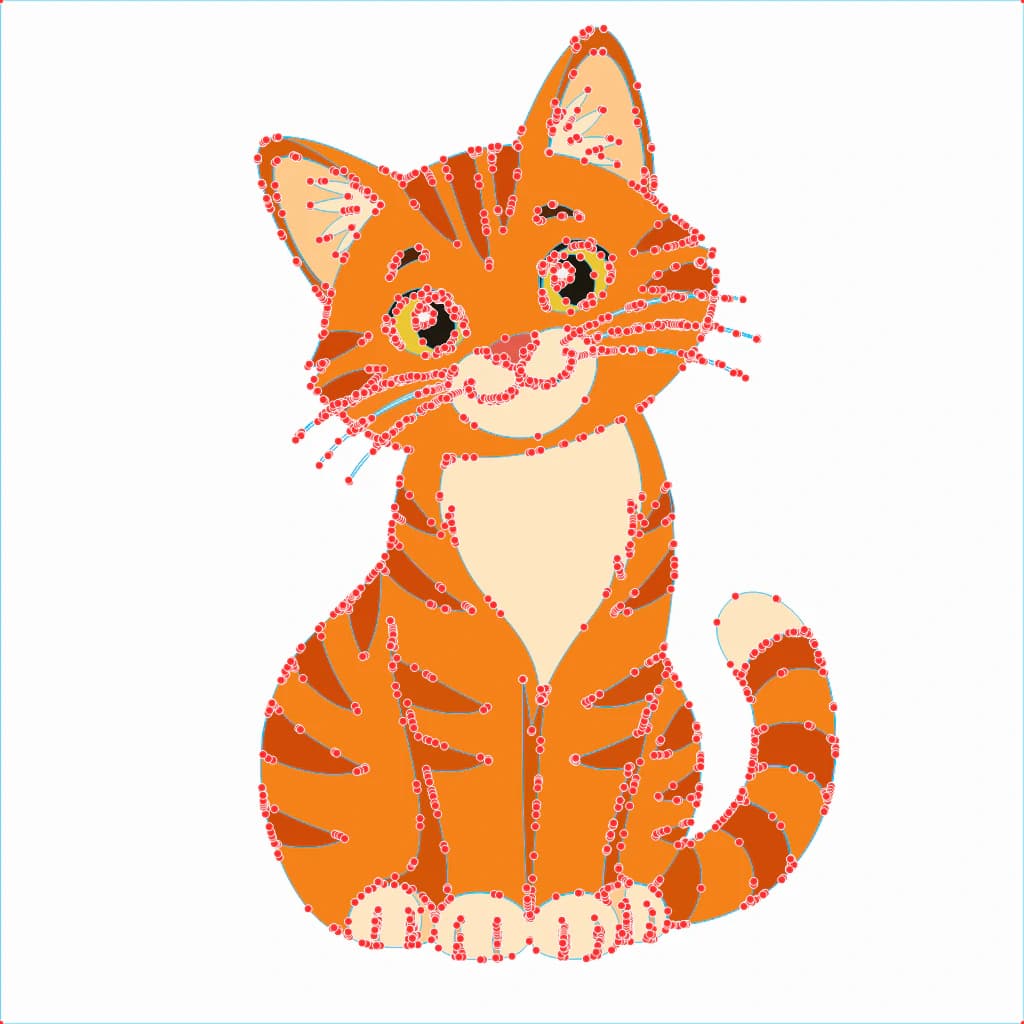
This is the one that blindsides people. When a PNG is traced with overly sensitive settings, the result can be clogged with unnecessary anchor points, plus stray specks and doubled edges along every shape. Each of those specks becomes a tiny piece you pick out by hand. A clean conversion produces smooth, low-node paths with none of that litter, the same reason too many nodes cause trouble everywhere else downstream.
Too much fine detail
Some designs are just hard to weed because the art is intricate, fine script, hairline outlines, tiny serifs, delicate filigree. At small sizes those thin slivers lift away with the excess no matter how clean your file or how sharp your blade. The fix here isn't a setting, it's the design: simplify the artwork into bolder shapes, or size the project up so the thin parts are wide enough to survive.
A stray box or background specks
If your design came in with a rectangle around it or a scatter of stray dots, that's extra weeding you didn't sign up for, usually a background that got traced as its own shape. Keeping a transparent background through the conversion removes it before it ever reaches the mat.
What a weed-friendly SVG looks like (with PerfectVector)
Put those together and the goal is simple: fewer colors, fewer nodes, no stray litter, and detail bold enough to survive. That's what a clean conversion gives you. PerfectVector traces your image into smooth, low-node paths, lets you merge colors down to the few you'll cut, and keeps the background transparent, so the file lands in Design Space with far less to pick out. You can turn your image into a cut-ready SVG and check the paths in the editor for free, no account needed, before you commit any vinyl (for the full cut-ready prep, see how to prepare SVG files for Cricut).
Being straight about it: a clean file makes weeding easier, it doesn't make it disappear. If your blade is dull or your vinyl is cheap, fix that too, and if the design is genuinely intricate, simplify it. The file is one lever of several, but it's the one you control before the cut and the one most guides never mention.

A weed-friendly pre-cut checklist
Before you cut, open your SVG and check:
- Colors merged down to the few you actually want.
- Paths clean and low-node, with no stray specks or doubled edges.
- No stray background box around the design.
- Thin lines and small text bold enough to survive at your cut size.
- The right material set in Design Space, with a fresh blade.
- A test cut on a scrap, so you catch weeding trouble before the full sheet.
FAQ
Why is my Cricut SVG so hard to weed? Usually a mix of causes. If the vinyl is barely cut, check the blade and material setting. If the cut is clean but there are endless tiny pieces, it's the design, too many colors, too much fine detail, or a rough trace full of stray points. And if the excess won't release, check material condition and transfer technique. Sort out which before you blame any single thing.
Is hard weeding the file or my cut settings? Check the cut first. If the blade didn't cut all the way through, no file will help, fix the blade, pressure, and material setting. If the cut is clean but weeding is tedious because of how many little pieces there are, that's the file, and a simpler, cleaner, lower-node design fixes it.
Does the number of colors affect weeding? A lot. Each color in a layered design is a separate piece to weed and cut, so a twenty-color design is many times the work of a three-color one. Merging similar shades down to a handful is the fastest way to cut your weeding time.
Why does my converted SVG leave so many tiny pieces to weed? Because the trace was rough. Overly sensitive tracing can add stray specks, doubled edges, and extra nodes, and each separate speck can become a piece you weed by hand. A clean conversion produces smoother paths without the litter, so there's less to pick out.
How do I make a design easier to weed? Simplify it before you cut: fewer colors, cleaner and lower-node paths, no stray background, and detail bold enough to survive your cut size. Then back it up at the machine with the right material setting, a fresh blade, and a test cut. The cleaner the file and the bolder the design, the less weeding there is to do.
Can a cleaner SVG fix bad weeding on its own? Only the part that's caused by the file. A clean, simple SVG removes the stray specks and excess layers that make weeding tedious, but it can't compensate for a worn blade, the wrong material setting, or unsuitable material. Treat the file and the machine as two separate fixes.
Sources
- Cricut — How do I choose material settings? — material selection, test cuts, pressure, and multi-cut guidance.
- Cricut — Cutting pressure issues — blade inspection and pressure troubleshooting.
- Cricut — Smart Vinyl instructions — cutting, weeding, transfer tape, and application workflow.
- Cricut — Basic Tool Set — documented purpose of the weeder and related tools.
Fighting a design that won't weed? Convert it into a cleaner, lower-node SVG, merge the colors down, and run a test cut before you commit the whole sheet.
More from the blog
How to Make a Sticker SVG (From Your Own Art, Ready to Cut)
A sticker SVG is the clean cut path behind a die-cut sticker. Here's how to turn your own image into one, when you need a vector vs a PNG, and what won't work.

Make SVG Files to Sell on Etsy: A Production Guide
On Etsy, the file is what buyers review, and messy files are what get refunded. Here's how to make a clean, layered SVG cut file that's good enough to sell.