Görüntü vektörleştirme nedir?
Görüntü vektörleştirmenin ne yaptığını, raster piksellerin düzenlenebilir SVG yollarına nasıl dönüştüğünü ve ne zaman yüksek çözünürlüklü raster seçmeniz gerektiğini öğrenin.
Bu sayfada
Bir logoyu büyütmeye çalışıp bulanık karelere dönüştüğünü gördüyseniz vektörleştirmenin çözdüğü sorunla zaten karşılaşmışsınız demektir.
Raster ve vektör
Raster görüntü, PNG, JPG veya GIF gibi, görüntü örneklerini bir piksel ızgarasında saklar. Görüntünün piksel boyutları sabittir: yeterince büyüttüğünüzde bulanıklığı veya ızgarayı görürsünüz. Örneğin W3C'nin PNG belirtimi, PNG'yi tarama satırlarından ve piksellerden oluşan bir raster görüntü biçimi olarak tanımlar. PNG 3 standardına bakın.
Eski bir .bmp dosyası, kendine özgü temizleme sorunları olan raster örneklerinden biridir. Eski dosyanın her kusurunu bir yola dönüştürmeden, kasıtlı keskin kenarları korumak için BMP görüntüsünü vektörleştirme iş akışını kullanın.
AVIF olarak kaydedilmiş çizimler için AVIF'den SVG'ye dönüştürücüyle başlayıp oluşan yolları inceleyin. Kaynak biçimi dosyayı nasıl açtığınızı değiştirir; çizimin vektörleştirmeye uygun olup olmadığını belirlemez.
Vektör görüntü, geometriyi "buradan şuraya bir eğri çiz, içini kırmızı doldur" gibi talimatlarla tanımlayabilir. Bu vektör öğeleri, raster pikselleşme olmadan farklı boyutlarda görüntülenebilir. Bazı vektör kapsayıcıları raster görüntü de barındırabildiğinden, .svg uzantısı tek başına görünen her öğenin vektör olduğunu kanıtlamaz. (W3C SVG 2; SVG'de gömülü içerik)
Temel fark budur: raster ayrıntıları piksel ızgarasına bağlıdır; vektör geometrisi çözünürlükten bağımsızdır.
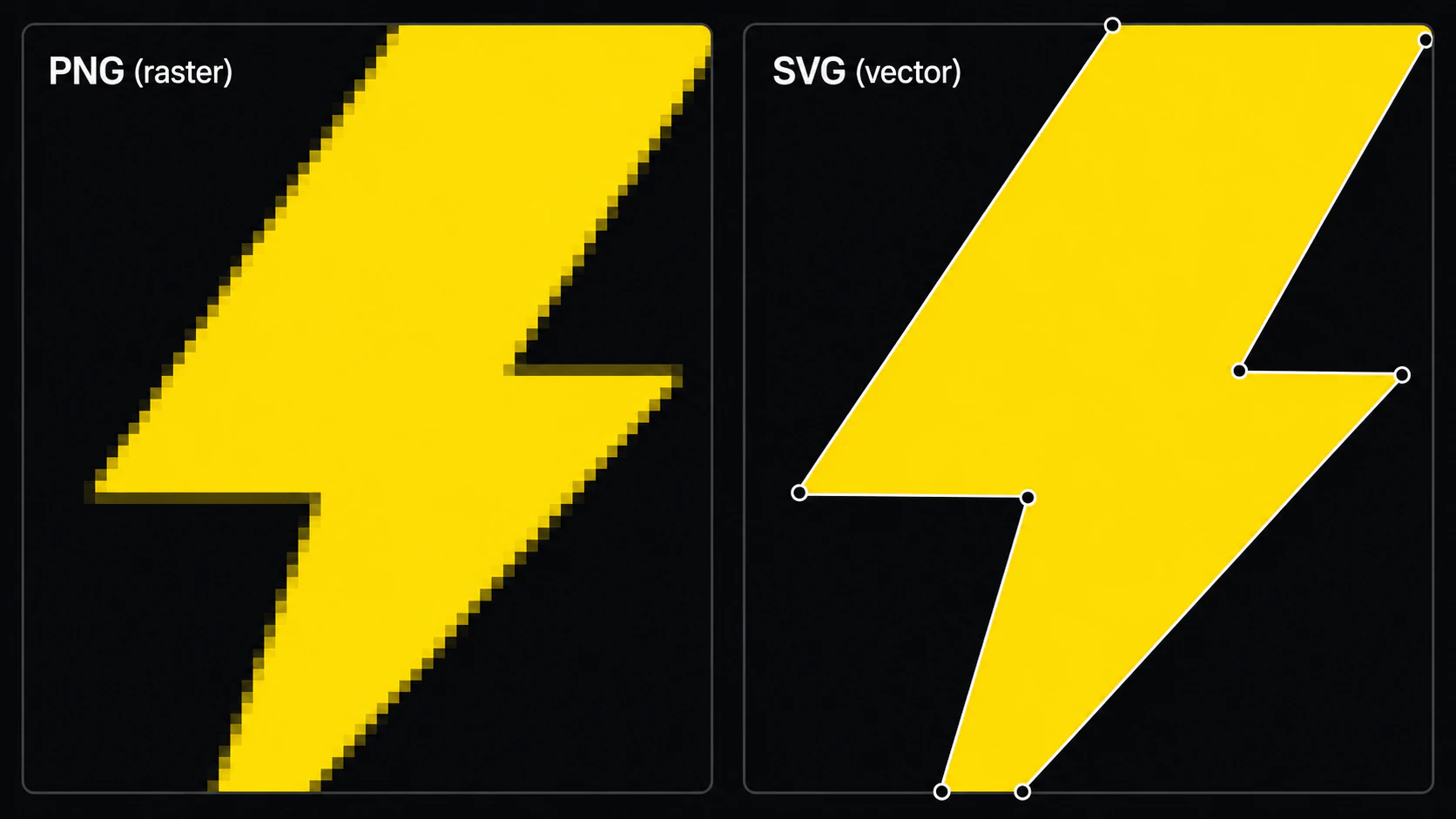
Vektörleştirme ne anlama gelir?
Vektörleştirme (görüntü izleme olarak da adlandırılır), raster görüntüyü alıp vektör şekilleri olarak yeniden oluşturma işlemidir. Çıktı, orijinaldeki her renk bölgesinin bir veya daha fazla dolgulu yola dönüştüğü bir vektör dosyasıdır.
İyi yapıldığında sonuç:
- Yeniden oluşturulan vektör öğeleri için raster pikselleşme olmadan ölçeklenir
- Illustrator, Figma, Inkscape veya Affinity Designer gibi araçlarda şekil şekil düzenlenebilir
- Basit çizimlerde, yolların ve efektlerin karmaşıklığına bağlı olarak orijinal rasterdan daha küçük olabilir
- Dosya gereksinimleri kontrol edildikten sonra, özellikle yollar veya düzenlenebilir şekiller isteyen iş akışlarına uygundur
Tasarımcılar neden vektörleştirir?
En sık karşılaştığımız nedenlerden bazıları:
- Üretilmiş çizimleri temizlemek. Güncel OpenAI ve Stability görüntü API'leri PNG, JPEG ve WebP gibi raster çıktıları belgeler. Sonraki iş akışında düzenlenebilir yollar gerekiyorsa bu raster sonuçları vektörleştirmek veya elle yeniden çizmek gerekir. (OpenAI Images API; Stability AI API; yapay zekâ çizimlerini baskı için vektörleştirme)
- Eski logoları yeniden kullanıma hazırlamak. Birçok küçük işletmede yalnızca orijinal logonun JPG'si bulunur. Vektörleştirme, güncel kullanım alanları için ölçeklenebilen temiz bir SVG üretir.
- Baskı ve ürünler. Vektör kaynak, ölçeklenebilir logolar ve düz grafikler için kullanışlıdır; ancak birçok sağlayıcı yüksek çözünürlüklü raster dosyalarını da kabul eder. Satıcının ilgili ürüne özel şartlarını izleyin; örneğin Printful çoğu baskı ürünü için PNG veya JPEG önerir. (Printful dosya rehberi)
- Kesim ve üretim. Kesim iş akışları vektör şekillerini katman veya takım yolu geometrisi olarak kullanabilir; raster kazıma ve yazdır-kes iş akışlarında ise vektörleştirme gerekmeyebilir. Cricut, SVG ve DXF'yi katmanlı vektör yüklemeleri; raster biçimlerini ise tek katmanlı görüntü yüklemeleri olarak belgeler. (Cricut yükleme rehberi; Cricut için SVG hazırlama; görüntüyü lazer kesime hazırlama; 3B baskı sürümü)
Zor kısım: düzenlenebilirlik
Bir vektör dosyası üretmek, belirli bir işte kullanılabilecek bir dosya üretmekle aynı şey değildir. (Karşılaştırılan yapay zekâ vektörleştiricilerine bakın.)
Otomatik vektörleştiriciler raster özelliklerini vektör yollarıyla yaklaşık olarak yeniden oluşturur. Kaynağa, algoritmaya ve ayarlara bağlı olarak şunlar ortaya çıkabilir:
- Her şekil için yüzlerce veya binlerce bağlantı noktası
- Düzgün yaylar oluşturmak yerine gürültüyü izleyerek dalgalanan eğriler
- Tek bir görsel şeklin, üst üste gelen çok sayıda parçaya bölünmesi
Sonuç teknik olarak hâlâ vektör olabilir, ancak düzenlemesi zahmetlidir. Adobe'nin Image Trace kontrolleri yol uyumu, köşeler, gürültü, renkler ve karmaşıklık arasında açıkça denge kurar; Potrace ise bitmap dış çizgileri için çokgen tabanlı bir eğri uydurma yaklaşımını belgeler. (Adobe Image Trace seçenekleri; Potrace makalesi)
İyi bir vektörleştiricinin hedefi, tasarımcının en başta çizeceğine benzeyen yollar üretmektir: daha az düğüm, temiz eğriler ve görünür her bölge için bir şekil.
Yapay zekâ nerede devreye giriyor?
Potrace gibi klasik vektörleştiriciler, bitmap dış çizgilerinden yollar türetmek ve bunları iyileştirmek için belgelenmiş deterministik aşamalar kullanır. Modern ürünler farklı algoritmalar veya öğrenilmiş modeller kullanabilir; davranışları ürüne ve girdiye göre değişir.
Pratikte sorulması gereken, ürünün "AI" etiketi taşıyıp taşımadığı değil; çıktısının amaçlanan silüeti ve renkleri mantıklı yollar ve katmanlarla koruyup korumadığıdır. Aynı kaynağı deneyin, SVG'yi inceleyin, düğüm sayısını ve düzenlenebilirliği karşılaştırın.
PerfectVector bu hedefe göre tasarlanmıştır: raster çizimleri düzenlenebilir vektör şekilleri olarak yeniden oluşturmak. Her sonucu kaynakla karşılaştırın; doğruluğun veya üretim riskinin önemli olduğu durumlarda yolları başka bir yöntemin çıktısıyla da karşılaştırın.
Ne zaman vektörleştirmeli, ne zaman kaçınmalı?
Vektörleştirme en iyi şu görsellerde çalışır:
- Logolar ve yazı temelli logolar
- Simgeler ve illüstrasyonlar
- Belirgin renk bölgeleri olan stilize grafikler
- Elle çizilmiş çizgi çalışmaları
Karmaşık sahnelerin fotoğraflarında daha az başarılıdır. Orman fotoğrafında o kadar çok farklı renk bölgesi ve geçiş bulunur ki vektörleştirilmiş sürüm ya çok büyük (milyonlarca yol içeren) ya da kayıplı olur. Fotoğrafları genellikle raster olarak tutmalısınız.
Deneyin
Vektöre dönüşmesi gereken bir raster görüntünüz varsa dönüştürücüye bir PNG veya JPG yükleyin ve önizlemenin silüeti, renkleri ve yolları nasıl yeniden oluşturduğunu inceleyin. Vektörleştirme ve önizleme ücretsizdir; bir kredi SVG'nin kilidini açar. Özellikle yapay zekâyla üretilmiş görseller için yapay zekâ çizimlerini baskı için vektörleştirme rehberine bakın.
Sık sorulan sorular
Vektörleştirme ile görüntü izleme aynı şey mi? Evet. "Görüntü izleme", raster görüntüyü düzenlenebilir vektör şekilleri olarak yeniden oluşturma işlemi olan vektörleştirmenin başka bir adıdır.
Hangi görüntü biçimlerini vektörleştirebilirim? Yaygın raster girdileri PNG ve JPG'dir; WebP, GIF, TIFF veya diğer biçimlerin desteği vektörleştiriciye bağlıdır. Mevcut en temiz kaynağı kullanın, ardından oluşan silüeti, renkleri ve yolları doğrulayın. (Kalite kaybetmeden PNG'yi SVG'ye dönüştürme.)
Bir fotoğrafı vektörleştirebilir miyim? Genellikle yapmamalısınız. Fotoğraflarda temiz şekillere dönüşemeyecek kadar çok renk geçişi ve bölgesi bulunur; sonuç çok büyük bir dosya veya posterize bir görünüm olur. Vektörleştirme; logolar, simgeler, illüstrasyonlar ve çizgi çalışmaları için tasarlanmıştır.
SVG'yi daha sonra hangi araçlarla açabilirim? Adobe Illustrator, Figma, Sketch, Inkscape, Affinity Designer ve Canva dâhil birçok vektör özellikli araç SVG iş akışlarını destekler. Özelliklerin işlenmesi değişebildiğinden dosyayı kullanmayı planladığınız uygulamanın tam sürümünde test edin.
Ücretsiz mi? Vektörleştirme ve önizleme ücretsizdir; bir kredi tamamlanmış SVG'nin kilidini açar. Kilidi açmadan önce yerleşik düzenleyiciyi kullanıp renklerin ve yolların iş akışınıza uygunluğunu kontrol edin.
Kaynaklar
- W3C — Portable Network Graphics (PNG) belirtimi, üçüncü baskı — PNG'nin raster gösterimi ve kayıpsız kodlaması için güncel standart.
- W3C — Scalable Vector Graphics (SVG) 2 — SVG geometrisini, yollarını, boyamasını ve görüntülenmesini tanımlayan standart.
- Adobe Illustrator — Image Trace paneli seçenekleri — Doğruluk ile karmaşıklık arasındaki dengeyi gösteren resmî vektörleştirme kontrolleri.
- Selinger — Potrace: çokgen tabanlı vektörleştirme algoritması — Klasik bir bitmap-vektör algoritmasının birincil teknik açıklaması.
- Cricut — Design Space'e görüntü yükleme — Kesim iş akışında raster ve vektör yüklemeleriyle katman davranışına ilişkin resmî rehber.
- Printful — Baskı dosyamı nasıl hazırlamalıyım? — Birçok baskı iş akışının raster dosyalarını kabul ettiğini gösteren birincil satıcı rehberi.
Düzenlenebilir yollar gerektiren düz bir raster çiziminiz mi var? PerfectVector ile dönüştürün, önizlemeyi kaynakla karşılaştırın ve yalnızca şekilleriyle düğüm düzeni sonraki araca uygunsa SVG'nin kilidini açın. Bilinçli olarak stilize bir vektörleştirme istemiyorsanız fotoğrafları raster olarak tutun.
Bloga daha fazlası

Yapay zekâ SVG üretimi mi, vektörleştirme mi?
Yapay zekâ SVG üreticisi, metin isteminden yeni vektör oluşturur. Vektörleştirme aracı elinizdeki görseli dönüştürür. Hangisini seçmeli, ne zaman ikisini kullanmalısınız?

Gemini görüntü vektörleştirebilir mi? Yapabildikleri
Gemini metin isteminden SVG kodu yazabilir; çoğu AI'dan farklıdır. Ancak yüklediğiniz görüntüyü temiz, düzenlenebilir SVG'ye vektörleştiremez. Sınırlarını öğrenin.