
Sticker SVG कैसे बनाएं (अपनी art से, cut-ready)
Sticker SVG die-cut sticker के पीछे का साफ cut path होता है। यहां जानें कि अपनी image को sticker SVG में कैसे बदलें, कब vector चाहिए vs PNG, और क्या काम नहीं करेगा।
इस पेज पर
- Sticker SVG असल में क्या है
- अच्छे sticker SVG में क्या होता है
- पहले आपको क्या चाहिए
- Step by step: अपनी image से cut-ready sticker SVG तक
- 1. Clean, transparent image से शुरू करें
- 2. अपनी image को clean SVG में convert करें
- 3. Cut line जोड़ें (offset)
- 4. Kiss-cut या die-cut चुनें
- 5. Printed sticker के लिए, print then cut करें
- 6. Vinyl decal के लिए, सीधे SVG से cut करें
- PerfectVector में यह कैसा दिखता है
- जल्दी pre-cut checklist
- FAQ
Sticker SVG एक vector file होती है जिसके paths cutting machine को बताते हैं कि sticker की outline कहां cut करनी है। यह die-cut या kiss-cut sticker के पीछे की clean shape है। अगर आपके पास पहले से artwork, drawing, logo, या PNG है, तो sticker SVG बनाने का तरीका है उस image को clean vector paths में बदलना, फिर उसके चारों तरफ cut line जोड़ना। पहले दो ईमानदार बातें जान लें: printed sticker को सिर्फ एक अच्छी image और cut line चाहिए, जबकि colored material से cut होने वाले vinyl sticker को follow करने के लिए असली vector paths चाहिए। और busy photos या soft gradients किसी भी तरह अच्छे stickers नहीं बनाते। यह guide आपकी अपनी image से SVG बनाने, दोनों तरह के stickers, और किन images पर मेहनत worth है, यह सब cover करती है।
जल्दी जवाब
- Sticker SVG वह vector cut path है जो आपकी machine को बताता है कि sticker outline कहां cut करनी है।
- Sticker दो तरह के होते हैं: printed sticker (print then cut, जहां high-resolution PNG ठीक print होती है) और vinyl die-cut (colored vinyl से cut, जिसके लिए असली vector paths चाहिए)।
- अपनी art से बनाने के लिए: image को clean SVG में convert करें, फिर उसके चारों तरफ offset cut line जोड़ें।
- Kiss-cut stickers को backing sheet पर छोड़ता है; die-cut हर sticker को पूरा अलग cut कर देता है।
- Simple, bold art सबसे अच्छा काम करती है। Photos, gradients, और hairline details साफ cut या weed नहीं होते।
Sticker SVG असल में क्या है
Sticker SVG क्या है? Sticker SVG एक vector image है जिसके paths को cutting machine cut lines की तरह पढ़ती है। PNG के उलट, जो pixels की grid होती है, SVG shapes को math के रूप में store करता है, इसलिए outline किसी भी size पर sharp रहती है और machine को ठीक पता होता है कि blade कहां चलाना है। Sticker के लिए सबसे जरूरी path वह outline है जो cut edge बनती है। (Format नया है? सरल शब्दों में पढ़ें कि SVG file क्या होती है।)
"Sticker" शब्द दो अलग चीज़ों को cover करता है, और दोनों को एक जैसी file नहीं चाहिए। पहले यह clear कर लेने से आगे बहुत confusion बचता है।
| Sticker type | कैसे बनाया जाता है | क्या आपको सच में SVG चाहिए? |
|---|---|---|
| Printed sticker (print then cut) | Full-color design sticker paper पर print होता है, फिर machine outline cut करती है | High-resolution PNG ठीक print होती है। Vector सिर्फ उसके चारों तरफ cut line के लिए चाहिए। |
| Vinyl die-cut decal | Solid-color vinyl की sheet से cut होता है, इसमें printing नहीं होती | हां। Machine vector paths के along cut करती है, इसलिए shapes असली paths होने चाहिए, pixels नहीं। |
तो अगर आपने sticker SVG search किया और एक ही जवाब expect किया था, तो tutorials split लगने की यही वजह है: printed sticker साफ image plus outline पर depend करता है, और vinyl decal खुद paths पर। दोनों को clean SVG से फायदा होता है, और बाकी guide वही बनाती है।
अच्छे sticker SVG में क्या होता है
Steps से पहले, यह समझ लें कि आपका target क्या है। ऐसा sticker SVG जो बिना लड़ाई के cut और weed हो, उसमें ये बातें होती हैं:
- Cut line के लिए एक साफ, closed outline, ताकि blade खुद पर वापस घूमने के बजाय एक single smooth edge follow करे।
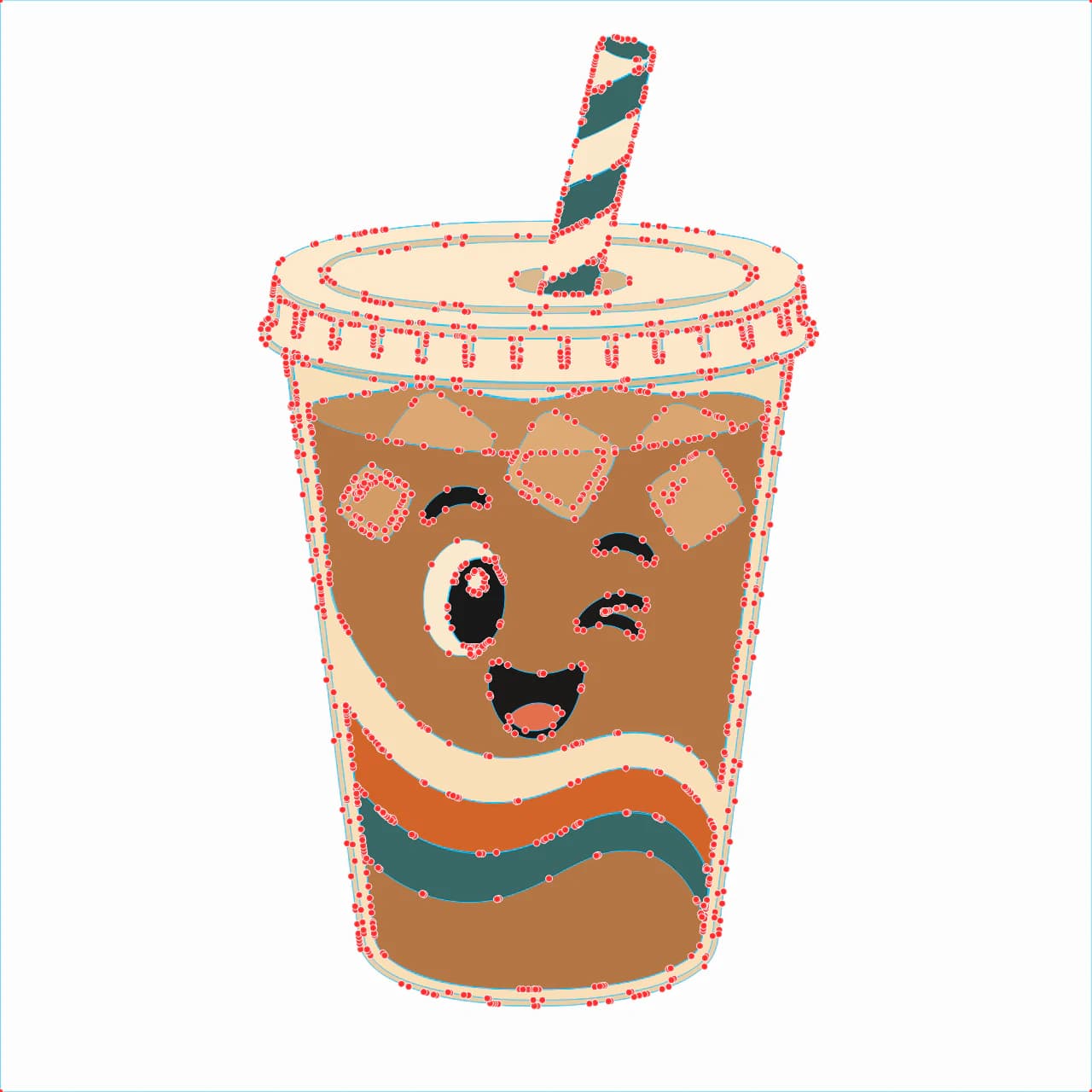
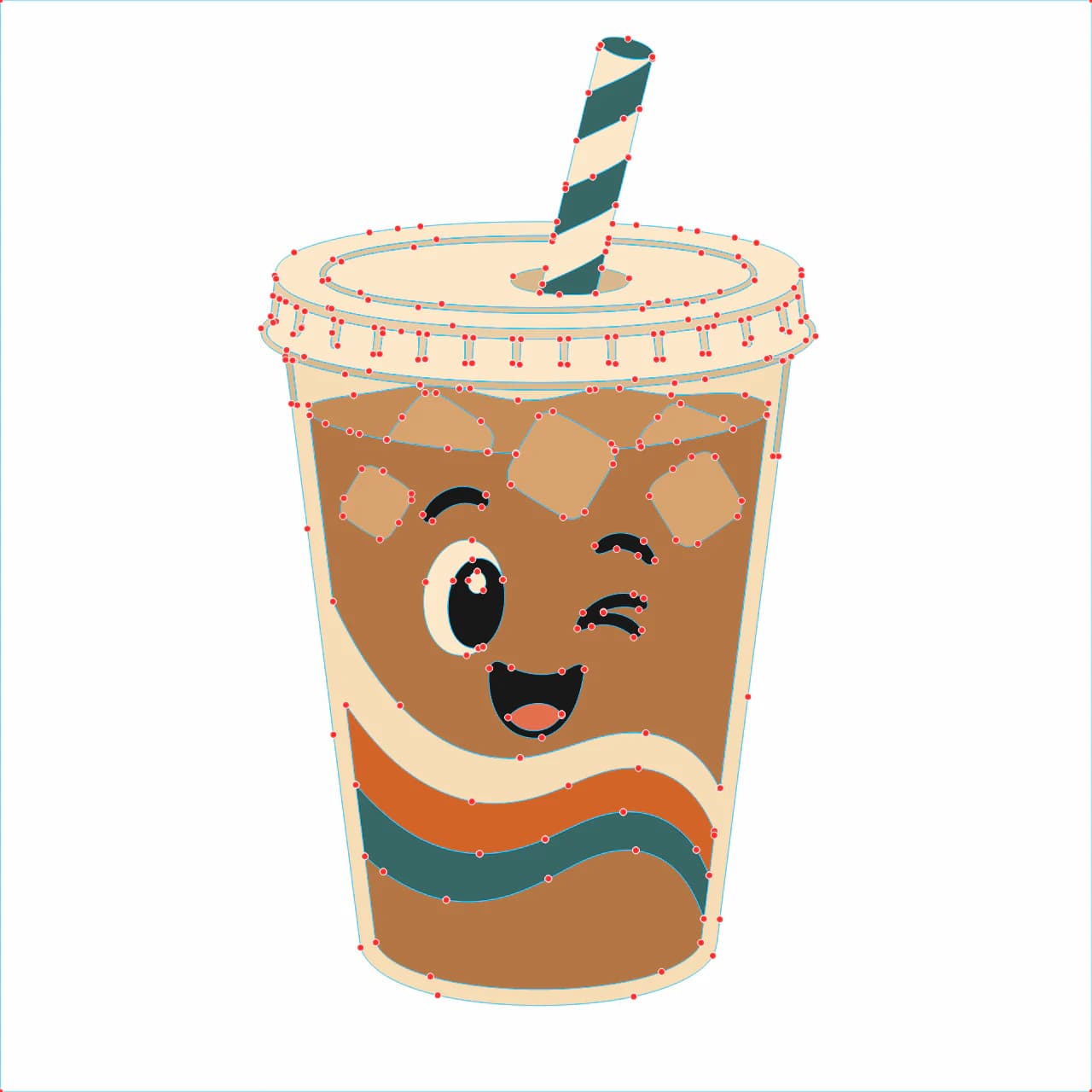
- Low node count, ताकि cut smooth हो और वीडिंग जल्दी हो। वही बहुत ज्यादा nodes वाली समस्या जो किसी भी cut file को clog करती है, stickers में bumpy edges के रूप में दिखती है।
- Transparent background, ताकि कोई stray rectangle unwanted cut में न बदल जाए। यहां देखें कि conversion के दौरान transparency कैसे बनाए रखें।
- Bold, simple shapes। Thin lines और tiny text वही parts हैं जो weed करते समय फटते हैं।
- Colors की sensible संख्या, अगर यह layered vinyl sticker है। हर color cut और align करने के लिए एक और piece है।
पहले आपको क्या चाहिए
Cutting software खोलने से पहले दो चीज़ें चाहिए:
- आपका artwork। Drawing, logo, wordmark, या clipart-style PNG। Clear edges वाली flat, graphic art सबसे अच्छी रहती है।
- उसे clean SVG में बदलने का तरीका। यही step decide करता है कि बाद में आपको कितनी cleanup करनी पड़ेगी, और video tutorials अक्सर इसी step को skip कर देते हैं।
Image पर एक ईमानदार note। अगर आपकी image photograph, screenshot, या gradients और soft edges वाली कोई चीज़ है, तो यहीं रुकें। ये clean cut outline में reduce नहीं होतीं। आप trace से लड़ेंगे और फिर भी वीडिंग messy रहेगी। Simple, bold art ही ऐसा sticker बनाती है जो अच्छी तरह cut होता है।
Step by step: अपनी image से cut-ready sticker SVG तक
1. Clean, transparent image से शुरू करें
अगर आपकी image में background, white box, या photo backdrop है, तो पहले उसे remove करें ताकि वह अपनी अलग cut shape न बन जाए। आपको transparent canvas पर सिर्फ artwork चाहिए। इसी समय वे tiny details भी हटा दें जो sticker size पर वीडिंग survive नहीं करेंगी।
2. अपनी image को clean SVG में convert करें
यही step file को बना या बिगाड़ देता है। अपनी image को convert करें ताकि हर shape tidy vector path बन जाए, फिर check करें कि outline एक clean edge की तरह पढ़ रही है। अपनी image को cut-ready SVG में बदलें और आगे बढ़ने से पहले result देख लें।
यहां free auto-trace अक्सर fail हो जाता है। Rough trace आपको stray specks और doubled edges से भरी outline देता है, और उसकी कीमत machine पर चुकानी पड़ती है, जहां blade हर wobble follow करता है और weed करने के लिए छोटे-छोटे slivers की कतार छोड़ देता है। यही issue कई Cricut files जो साफ cut नहीं होतीं के पीछे होता है। Clean conversion से शुरू करने पर यह लगभग पूरा बच जाता है।
3. Cut line जोड़ें (offset)
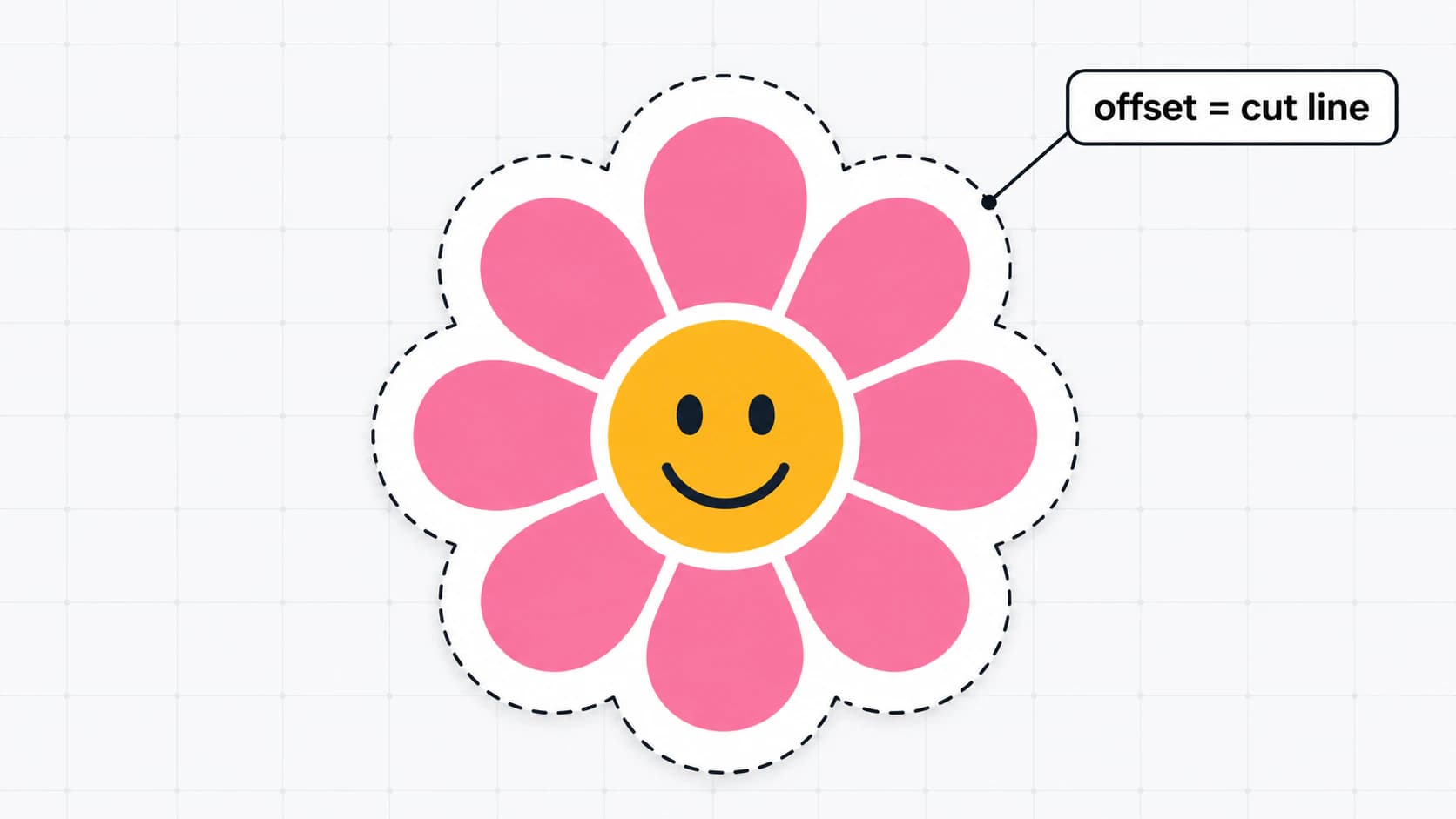
Cut line एक outline होती है जो आपके design से थोड़ी बाहर बैठती है, वही white border जो ज्यादातर stickers पर दिखता है। Cricut Design Space या Silhouette Studio में अपनी shape select करें और इसे बनाने के लिए Offset apply करें। अपनी मनचाही distance चुनें और corners rounded चाहिए या sharp, यह तय करें। Silhouette Studio में offset की line width zero set करें ताकि वह print न हो और सिर्फ cut हो। यही offset वह path है जिसे आपकी machine सच में follow करेगी।
4. Kiss-cut या die-cut चुनें
File वही रहती है, cut setting अलग होती है। Kiss-cut सिर्फ top layer को काटता है और backing को intact छोड़ता है, इसलिए stickers एक sheet पर साथ रहते हैं जिसे आप peel करते हैं। Die-cut पूरा through cut करता है, इसलिए हर sticker अपनी अलग shape में बाहर आता है। Planner stickers की sheets kiss-cut होती हैं; water bottle पर लगा single sticker die-cut होता है।
5. Printed sticker के लिए, print then cut करें
अगर आप design print कर रहे हैं, तो अपने stickers arrange करें, registration marks जोड़ें (वे marks जिन्हें machine scan करके cut को print के साथ align करती है), और sticker paper पर printer की best quality में print करें। उसे load करें, और machine marks पढ़कर हर outline cut करती है। Printing के बाद design को nudge न करें, वरना cut और print align नहीं होंगे। यहां भी general Cricut file prep steps लागू होते हैं।
6. Vinyl decal के लिए, सीधे SVG से cut करें
Vinyl sticker printing को पूरी तरह skip करता है। Vinyl color assign करें, उसे cut करने भेजें, और excess weed कर दें। अगर design में एक से ज्यादा color हैं, तो हर color अपनी layer पर होना चाहिए; यहां देखें कि vinyl के लिए layered SVG कैसे बनाएं ताकि colors पहले से separated आएं।
PerfectVector में यह कैसा दिखता है
जब SVG clean शुरू होता है, तो पूरा काम आसान हो जाता है। PerfectVector आपकी अपनी image, PNG या JPG, को simple closed paths, low node count, और transparent background वाले SVG में convert करता है, और यही foundation sticker cut line को चाहिए। Multi-color vinyl sticker के लिए इसका color editor similar shades को उन कुछ colors तक merge करने देता है जिन्हें आप सच में cut करेंगे, इसलिए weed और stack करने में कम मेहनत लगती है। आप अपना artwork convert कर सकते हैं और किसी paper या vinyl पर commit करने से पहले editor में result मुफ्त में देख सकते हैं, account की जरूरत नहीं। अगर आपको बस किसी भी image को vector paths में बदलकर शुरुआत करनी है, तो वही image-to-SVG conversion शुरू करने की जगह है। और अगर आप stickers खुद cut करने के बजाय बेचने के लिए बना रहे हैं, तो वही clean, few-node file buyers को scattered layers के बारे में message करने से बचाती है। यहां देखें कि Etsy पर बेचने के लिए SVG cut files कैसे prep करें।
सीधी बात: यह flat, graphic art पर काम करता है। Photo या gradient-heavy image किसी भी tool से clean cut sticker नहीं बनेगी, PerfectVector समेत। ऐसी images के लिए पहले artwork को bold shapes में simplify करें, या अलग design चुनें।
जल्दी pre-cut checklist
Machine को भेजने से पहले यह check कर लें:
- Background removed है, ताकि cut करने के लिए कोई stray box न रहे।
- Outline एक clean, closed path है।
- Offset cut line जोड़ी गई है, और printed sticker पर उसे print न होने के लिए set किया गया है।
- Node count इतना कम है कि edges smooth दिखें, bumpy नहीं।
- आप जो बना रहे हैं उसके लिए kiss-cut या die-cut चुना गया है।
- Print-then-cut sticker के लिए registration marks on हैं।
- पूरी sheet चलाने से पहले scrap पर test cut किया गया है।
FAQ
SVG sticker क्या है? यह ऐसा sticker है जिसकी cut shape SVG के रूप में store होती है, यानी pixels के बजाय paths से बनी vector file। Cutting machine उन paths को cut lines की तरह पढ़ती है, इसलिए outline किसी भी size पर crisp रहती है और blade उसे exactly follow करता है। Artwork खुद full color में print हो सकता है या solid vinyl से cut हो सकता है, लेकिन cut को SVG ही define करता है।
Sticker बनाने के लिए क्या मुझे SVG चाहिए, या PNG काफी है? यह sticker पर depend करता है। Printed print-then-cut sticker के लिए high-resolution PNG खूबसूरती से print होती है और आपको सिर्फ उसके चारों तरफ cut line के लिए vector चाहिए। Colored material से cut होने वाले vinyl decal के लिए आपको real SVG चाहिए, क्योंकि machine vector paths के along cut करती है और print करने के लिए कुछ नहीं होता।
अपनी image से sticker SVG कैसे बनाऊं? अपनी image को clean vector paths में convert करें, फिर cut line के रूप में offset outline जोड़ें। Transparent background पर flat, bold artwork से शुरू करें, उसे ऐसे tool से SVG में convert करें जो paths tidy रखे, और offset जोड़कर cut करने से पहले check करें कि outline एक smooth edge की तरह दिख रही है।
क्या मैं sticker SVG free में बना सकता/सकती हूं? आप अपनी image को SVG में convert करके result free में preview कर सकते हैं, account required नहीं, ताकि material commit करने से पहले देख सकें कि आपका artwork clean निकला या नहीं। Free auto-tracers भी मौजूद हैं, लेकिन वे अक्सर specks और doubled edges छोड़ देते हैं जो वीडिंग stage पर आपका समय लेते हैं, इसलिए किसी भी तरह outline quality check करना worth है।
Kiss-cut और die-cut sticker में क्या फर्क है? Kiss-cut sticker material की सिर्फ top layer cut करता है और backing intact छोड़ता है, इसलिए stickers एक sheet पर रहते हैं जिसे आप peel करते हैं। Die-cut पूरा through cut करता है, इसलिए हर sticker अपनी अलग shape होता है। दोनों same file use करते हैं; सिर्फ cut setting बदलती है।
क्या photo को sticker SVG में बदल सकता/सकती हूं? Clean sticker SVG में नहीं। Photo continuous tone और soft edges वाली होती है, इसलिए उसे trace करने पर crisp cut outline के बजाय messy, over-noded shape बनती है। अगर आपको photo से sticker चाहिए, तो उसे printed print-then-cut sticker की तरह treat करें (photo को PNG रखें और simple cut border जोड़ें), vinyl से photo को ही cut करने की कोशिश न करें।
क्या ChatGPT sticker SVG file बना सकता है? आपकी image से नहीं। ChatGPT text prompt से simple generic shapes के लिए SVG code लिख सकता है, लेकिन uploaded artwork को clean, cuttable path में trace नहीं कर सकता। उसके लिए image-to-vector converter चाहिए, जैसा कि क्या ChatGPT image को vectorize कर सकता है में बताया गया है।
क्या आपके पास कोई drawing या logo है जिसे आप sticker बनाना चाहते हैं? उसे clean SVG में convert करें, cut line के लिए offset जोड़ें, और पूरी sheet से पहले test cut चलाएं।
Blog से और
Etsy पर बेचने के लिए SVG फ़ाइलें कैसे बनाएं (फ़ाइल ही प्रोडक्ट है)
Etsy पर buyers आपकी फ़ाइल को review करते हैं, और messy files ही refund करवाती हैं। यहां जानें कि clean, layered SVG cut file कैसे बनाएं जो बेचने लायक हो।
आपके Cricut SVG की वीडिंग इतनी मुश्किल क्यों है (और फ़ाइल में आप कौन-सा हिस्सा ठीक कर सकते हैं)
मुश्किल वीडिंग आमतौर पर blade, vinyl और design के मिश्रण से होती है। जानें कैसे पहचानें कि समस्या कहां है, और SVG फ़ाइल को खुद वीडिंग के लिए काफी आसान कैसे बनाएं।