วิธีเตรียมไฟล์ SVG สำหรับ Cricut
เตรียมพาธ เลเยอร์ สี และขนาด SVG สำหรับ Cricut Design Space ตรวจการนำเข้าและผังแผ่นรอง แยก Weld กับ Attach และทดลองบนเศษวัสดุก่อน
ในหน้านี้
เตรียม SVG สำหรับ Cricut โดยตรวจรูปทรง เลเยอร์ที่ตั้งใจ ขนาด และประเภทการทำงานก่อนโหลดวัสดุ SVG อาจนำเข้าสำเร็จแต่ยังมีเส้นซ้ำ ชิ้นส่วนไม่ต้องการ หรือรายละเอียดเล็กเกินสำหรับวัสดุที่เลือก นามสกุลไฟล์อย่างเดียวไม่ได้ทำให้งานพร้อมตัด
คุณต้องมีสำเนางาน โปรแกรมแก้ไขที่รองรับ SVG และ Cricut Design Space เพื่อตรวจการนำเข้าและแผ่นรองขั้นสุดท้าย ตัดสินก่อนแก้ว่าโครงการเป็นการตัดวัสดุ การวาด หรือ Print Then Cut เก็บไฟล์เดิมไว้เพื่อกู้รายละเอียดที่ลบระหว่างเก็บงาน
เลือก SVG หรือราสเตอร์ตามการทำงาน
พาธอธิบายรูปทรงที่แอปใช้เป็นเส้นหรือรูปได้ ส่วนราสเตอร์ เช่น PNG หรือ JPEG เก็บพิกเซล SVG มีได้ทั้งพาธและองค์ประกอบอื่น รวมถึงราสเตอร์ มาตรฐาน SVG ไม่ได้รับรองว่าไฟล์พร้อมตัด
คำแนะนำอัปโหลดของ Cricut แยกการอัปโหลดราสเตอร์พื้นฐานกับเวกเตอร์ SVG ที่ออกแบบมีเลเยอร์จะเก็บเลเยอร์ที่ออกแบบไว้ ไม่ได้หมายความว่าสีเติมแต่ละสีจะกลายเป็นเลเยอร์รวมหนึ่งชั้นโดยอัตโนมัติ
PNG เป็นจุดเริ่มที่ใช้ได้ Design Space มีตัวเลือกเก็บราสเตอร์และแปลง รวมถึง Convert to Layers ที่มีเงื่อนไขการเข้าถึงแยก สำหรับภาพเงาราสเตอร์ง่าย ๆ ขั้นตอนอัปโหลดของโปรแกรมเองอาจเพียงพอ สำหรับโลโก้หรือภาพประกอบหลายเลเยอร์ การเตรียมรูปทรงเวกเตอร์ภายนอก Design Space ให้ควบคุมสิ่งที่นำเข้าได้มากกว่า
| โครงการที่ตั้งใจ | จุดเริ่มที่มีประโยชน์ | สิ่งหลักที่ต้องตรวจ |
|---|---|---|
| ตัดภาพเงาง่าย ๆ | SVG สะอาด หรือราสเตอร์ที่เตรียมอัปโหลด | เส้นขอบที่ตั้งใจและรายละเอียดเล็กที่สุด |
| ตัดวัสดุหลายสี | SVG ที่จัดส่วนประกอบโดยตั้งใจ | เลเยอร์ที่นำเข้าและการแยกแผ่นรอง |
| วาดด้วยปากกา | รูปทรงที่กำหนดเป็นการวาดที่ต้องการ | เส้นกึ่งกลาง เส้นขอบซ้ำ และประเภทการทำงาน |
| Print Then Cut | งานที่เตรียมเพื่อขั้นตอนนั้น | ลักษณะพิมพ์และเส้นตัดรอบนอกที่ตั้งใจ |
สำหรับงานราสเตอร์ที่ต้องมีพาธ ดูการตรวจคุณภาพ PNG เป็น SVG หากทำงานกับ Siser แทน ใช้ขั้นตอนนำเข้าและทดลองตัด Leonardo
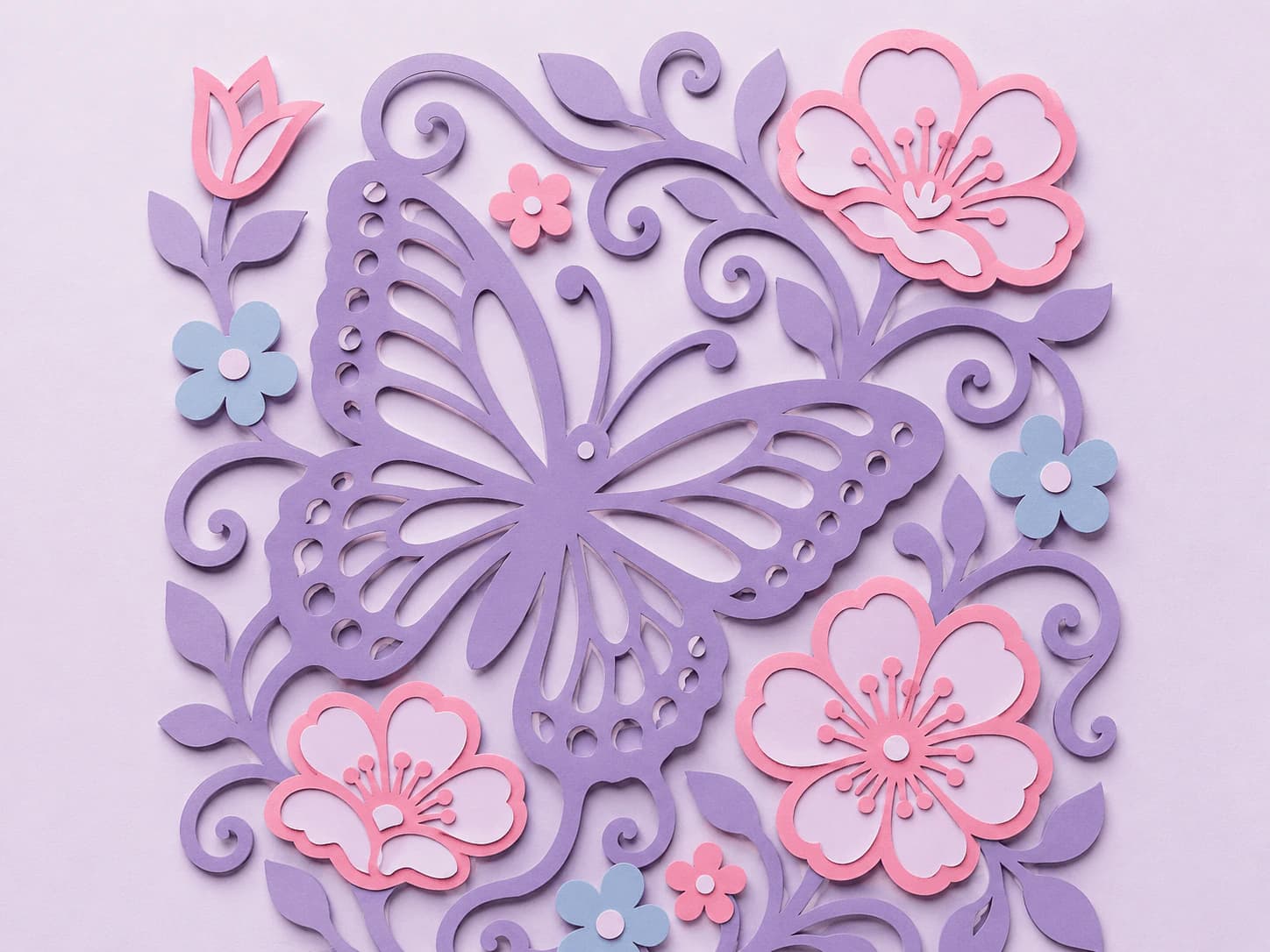
เตรียมรูปทรงก่อนนำเข้า
- ตรวจเวกเตอร์ที่มีอยู่ก่อน หากมี SVG แล้ว ให้รักษารูปทรงที่ใช้ได้แทนการลากเส้นใหม่ ยืนยันว่าส่วนที่ต้องการเป็นพาธ ไม่ใช่ราสเตอร์ฝัง Cricut ระบุคุณสมบัติอัปโหลดที่ไม่รองรับ รวมถึงสิ่งที่อาจต้องเตรียมก่อนนำเข้า
- ลากเส้นเมื่อจำเป็นต้องได้รูปทรงจากพิกเซลเท่านั้น ใน PerfectVector แปลงงานราสเตอร์ แล้วเทียบตัวอย่างฟรีกับต้นฉบับ ปลดล็อกผลก่อนแก้ไขหรือส่งออก ข้อเท็จจริงเกี่ยวกับผลิตภัณฑ์ แยกสิทธิ์ดูตัวอย่างกับการปลดล็อกผล
- ลบชิ้นส่วนที่ไม่ได้ตั้งใจและส่วนซ้ำ ตรวจจุด ช่องว่าง เส้นขอบซ้อน และช่องภายในตัวอักษร เก็บช่องเปิดที่ตั้งใจไว้ โหนดเป็นจุดที่แก้ไขได้บนพาธ โหนดน้อยมีประโยชน์ต่อเมื่อเส้นขอบยังถูกต้อง
- วางแผนพาเลตและโครงสร้าง รวมสีเกือบซ้ำเฉพาะเมื่อมีหน้าที่เป็นวัสดุเดียวกัน การเปลี่ยนสีไม่ได้เชื่อมพาธซ้อนหรือรับประกันว่าจะนำเข้าเป็นเลเยอร์เดียว สำหรับไฟล์สีแยกที่จัดแนวตรงกัน ตัวแยกสี SVG จัดการงาน SVG สีทึบที่รองรับได้ ตรวจไฟล์ก่อนอาศัยการจัดกลุ่มนั้น
- บันทึก SVG ทำงานและตั้งขนาดที่ตั้งใจ ตรวจรายละเอียดเล็กที่สุดในขนาดนั้น SVG ปรับรูปทรงโดยไม่แตกเป็นพิกเซล แต่ข้อจำกัดทางกายภาพของการตัดและลอกเศษยังขึ้นกับเครื่อง ใบมีด วัสดุ และการตั้งค่า
ใช้การตรวจไฟล์ก่อนตัด เมื่อต้องการรายการตรวจรูปทรงละเอียดขึ้น อย่าลบรายละเอียดเล็กเพียงเพราะพาเลตเล็กหรือโหนดน้อยฟังดูดีกว่า
ตรวจเลเยอร์และผังใน Design Space
ทำตามคำแนะนำอัปโหลด SVG ปัจจุบันของ Cricut สำหรับแพลตฟอร์มของคุณ เพิ่มงานที่อัปโหลดลงพื้นที่งาน แล้วตรวจแผง Layers ขนาด และการทำงานที่กำหนดให้แต่ละส่วนที่ตั้งใจ
สำหรับการ์ดพับ แยกรูปทรงรอยพับใน SVG ออกจากการกำหนด Score หรือ Cut พาธเปิด แถบเติมสี และลักษณะเส้นประอาจต้องตรวจต้นฉบับต่างกันก่อนเลือกการทำงาน
สี การจัดกลุ่ม และรูปทรงแก้ปัญหาต่างกัน:
- การเปลี่ยนสีวัสดุไม่รวมเส้นขอบที่ซ้อน
- Weld เชื่อมรูปทรงตัดที่ซ้อนเป็นรูปเดียว
- Attach รักษาตำแหน่งสัมพันธ์บนแผ่นรอง ไม่ได้เชื่อมรูปทรงเหล่านั้น
- กลุ่มช่วยจัดวัตถุ แต่ไม่ใช่หลักฐานว่าตำแหน่งบนแผ่นรองหรือรูปทรงตัดถูกต้อง
ความต่างเหล่านี้อ้างอิงคู่มือคำศัพท์งานฝีมือของ Cricut ใช้การทำงานเพราะโครงการต้องการผลนั้น ไม่ใช่ใช้กับทุกไฟล์นำเข้า สำหรับงานหลายเลเยอร์ที่ตั้งใจ ดูคู่มือ SVG หลายเลเยอร์
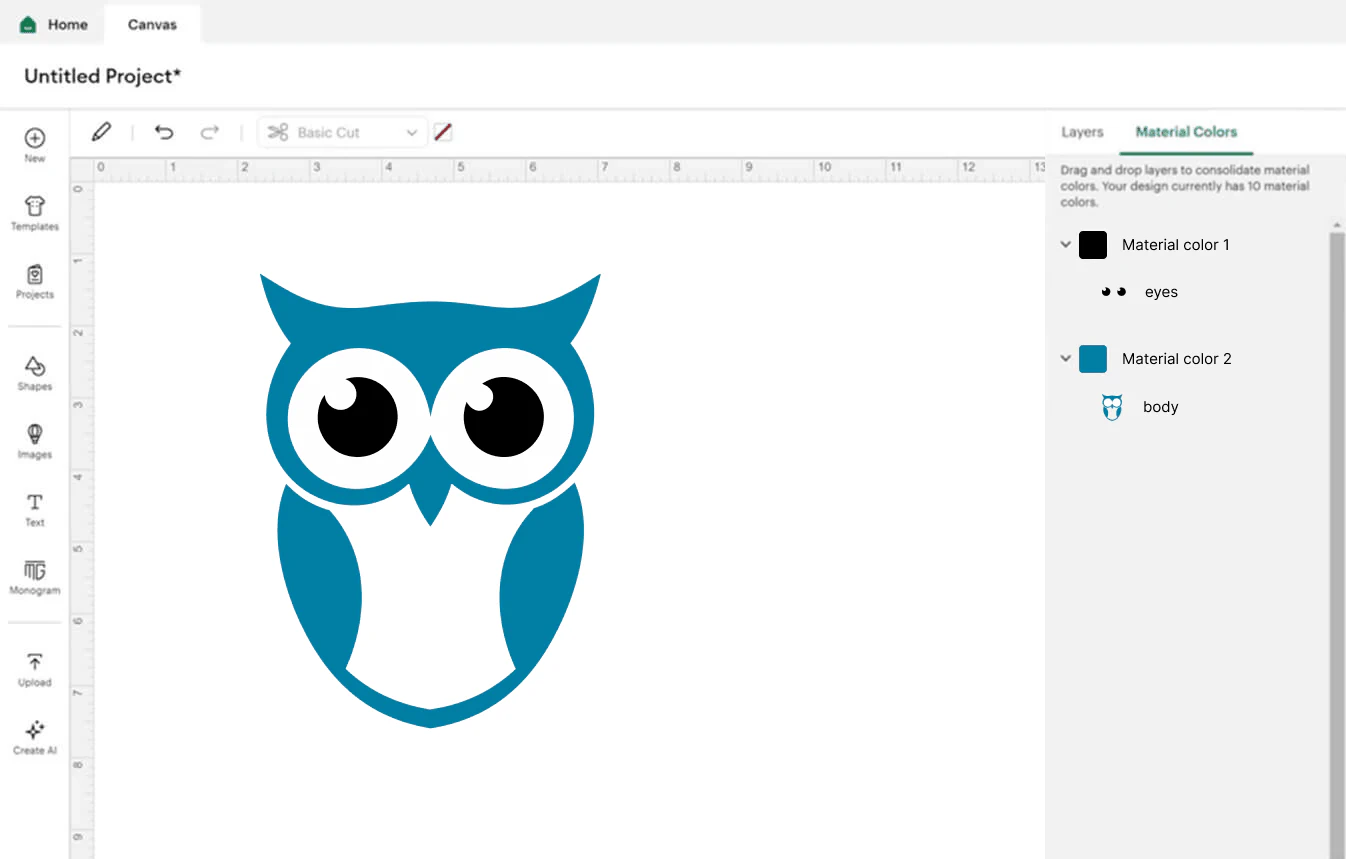
ตรวจตัวอย่างแผ่นรองก่อนใช้วัสดุจริง ยืนยันการจัดวาง จำนวนแผ่น ขนาดที่ตั้งใจ และค่าของโครงการ เช่น การกลับด้าน จากนั้นทดลองตัดเล็ก ๆ บนเศษวัสดุจริงด้วยค่าจริง การตรวจไฟล์ในเบราว์เซอร์หรือตัวอย่างผังไม่แทนการตรวจทางกายภาพนี้
วินิจฉัยปัญหาตามสาเหตุ
| อาการ | ตรวจอะไรก่อน | วิธีแก้ |
|---|---|---|
| ขอบหยักหรือฉีก | รูปทรงเส้นขอบ เส้นซ้ำ วัสดุ ใบมีด และการตั้งค่า | ตรวจไฟล์ แล้วทดลองค่าที่เปลี่ยนบนเศษวัสดุ อย่าคิดว่า PNG เป็นสาเหตุเดียว |
| ชิ้นส่วนไม่อยู่บนแผ่นรองที่ตั้งใจเดียวกัน | เลเยอร์นำเข้า สีวัสดุ และตำแหน่ง | ปรับสีหรือการทำงานจัดตำแหน่งหลังยืนยันโครงสร้างที่ต้องการ |
| มีชิ้นเล็กมากเกิน | จุดไม่ต้องการเทียบกับรายละเอียดที่ตั้งใจ | ลบเฉพาะส่วนไม่ตั้งใจ ขยายหรือออกแบบรายละเอียดจำเป็นใหม่ |
| มีกล่องขาว | พาธพื้นหลังหรือราสเตอร์ฝังที่ไม่รองรับ | ลบวัตถุพื้นหลังที่ถูกต้องหรือเตรียมต้นฉบับราสเตอร์ |
| อัปโหลดแจ้งว่าซับซ้อนเกิน | จำนวนพาธและคุณสมบัติไม่รองรับ | ลดรูปทรงไม่จำเป็นพร้อมเทียบเส้นขอบ Cricut ระบุขีดจำกัดอัปโหลด SVG 5,000 พาธ |
ขีดจำกัดพาธเป็นข้อจำกัดอัปโหลด ไม่ใช่คำรับรองว่าไฟล์เล็กกว่าทุกไฟล์จะตัดดี สำหรับการวินิจฉัยกว้างขึ้น ดูข้อผิดพลาดไฟล์ SVG ใหญ่เกินใน Cricut
คำถามที่พบบ่อย
Cricut ใช้ PNG แทน SVG ได้หรือไม่? ได้ Design Space รับราสเตอร์อัปโหลดและมีตัวเลือกเก็บงานกับแปลง ใช้ SVG ที่เตรียมแล้วเมื่อต้องการควบคุมรูปทรงเวกเตอร์และเลเยอร์ที่ออกแบบ เลือกขั้นตอนให้เหมาะกับการทำงานที่ตั้งใจ
SVG สำหรับ Cricut ควรมีขนาดเท่าใด? ตั้งขนาดจริงที่ต้องการและตรวจรายละเอียดเล็กที่สุดในขนาดนั้น รูปทรงเวกเตอร์ปรับได้โดยไม่แตกเป็นพิกเซล แต่ข้อจำกัดวัสดุ ใบมีด เครื่อง และการลอกเศษยังมีอยู่
ต้องจ่ายเงินเพื่ออัปโหลด SVG ของตัวเองหรือไม่? Cricut ระบุการอัปโหลดภาพผู้ใช้ ในทั้งระดับฟรีและเสียเงิน ขณะที่คุณสมบัติประมวลผลเพิ่มเติมบางอย่างมีเงื่อนไขการเข้าถึงแยก PerfectVector ให้แปลงและดูตัวอย่างฟรี แต่ต้องปลดล็อกผลก่อนแก้ไขและส่งออก ตรวจข้อเสนอปัจจุบันสำหรับคุณสมบัติที่ต้องการใช้
ภาพของฉันมีแค่ PNG ต้องทำอย่างไร? สำหรับภาพเงาง่าย ๆ ลองขั้นตอนอัปโหลดราสเตอร์ของ Design Space หากต้องการควบคุมพาธที่สร้างใหม่หรือหลายส่วนมากขึ้น ให้ลากเส้น PNG ตรวจตัวอย่าง ปลดล็อกก่อนแก้ไขและส่งออก แล้วตรวจโครงสร้าง SVG ที่นำเข้าใน Design Space
ให้รูปทรงมีสีเดียวกันจะรวมเป็นรูปตัดเดียวหรือไม่? ไม่ สีร่วมต่างจากการรวมรูปทรงทางเรขาคณิต ตรวจเลเยอร์นำเข้าและใช้การทำงานรูปทรงที่เหมาะ เช่น Weld เมื่อต้องให้รูปซ้อนกลายเป็นเส้นขอบตัดเดียว ส่วน Attach รักษาตำแหน่ง
แหล่งข้อมูล
- Cricut — วิธีอัปโหลดภาพเข้า Design Space — ขั้นตอนราสเตอร์และเวกเตอร์ เลเยอร์ที่ออกแบบ สิทธิ์คุณสมบัติ และขีดจำกัดพาธ SVG
- Cricut — การอัปโหลดภาพ: รายการที่ไม่รองรับ — คุณสมบัติ SVG ที่ต้องเตรียมสำหรับ Design Space
- Cricut — คำศัพท์งานฝีมือ — ความต่างของ Group, Weld, Attach และการทำงานโครงการ
- Cricut — เงื่อนไขและรายละเอียด Cricut Access — สิทธิ์อัปโหลดภาพผู้ใช้และบริบทแผน
- W3C — Scalable Vector Graphics (SVG) 2 — รูปทรงเวกเตอร์และคุณสมบัติเอกสาร SVG
- PerfectVector — ข้อเท็จจริงเกี่ยวกับผลิตภัณฑ์ — ตัวอย่าง การปลดล็อกผล และสิทธิ์แก้ไขกับส่งออก
ต้องการพาธจากแบบราสเตอร์หรือไม่? ดูตัวอย่างการแปลง SVG เปรียบเทียบเส้นขอบ แล้วปลดล็อกก่อนแก้ไขและส่งออก ตรวจเลเยอร์ที่นำเข้าและผังแผ่นรองใน Design Space และทดลองบนเศษวัสดุก่อนโหลดวัสดุสุดท้าย
เพิ่มเติมจากบล็อก
สร้าง SVG ขายบน Etsy: คู่มือเตรียมไฟล์จริง
บน Etsy ผู้ซื้อรีวิวไฟล์ และไฟล์รกทำให้ขอคืนเงิน ดูวิธีสร้าง SVG ตัดแบบสะอาดหลายเลเยอร์ที่ดีพอสำหรับขาย
PNG เป็น SVG สำหรับ Cricut: ตรวจปัญหาและซ่อมไฟล์
แก้ไฟล์ PNG ที่แปลงเป็น SVG สำหรับ Cricut ตรวจพาธ ลบเฉพาะพื้นหลังที่ยืนยันแล้ว ดูเศษและสี แล้วตรวจขนาดกับตำแหน่งใน Design Space