로고는 어떤 파일 형식이어야 할까요? 용도별 실용 안내
웹, 인쇄, 자수, 업체 요청에 맞는 로고 파일 형식을 하나의 표로 정리합니다. PNG만 있을 때 편집 가능한 벡터 마스터를 복원하는 방법도 알아봅니다.
로고의 올바른 파일 형식은 하나가 아닙니다. 사용처와 받는 쪽이 공개한 요건에 따라 다릅니다. 웹사이트는 SVG를 받을 수 있고, 인쇄 업체는 PDF, EPS, AI를 요청할 수 있으며, 소셜 플랫폼은 보통 래스터 작품을 요구합니다. 중요한 것은 편집 가능한 벡터 마스터 하나를 보관하고 필요에 따라 검증한 전달용 사본을 내보내는 것입니다.
벡터 마스터에 편집 가능한 글자가 있다면 폰트 정보를 거기에 보존하고 윤곽선으로 바꾼 전달용 사본을 만드세요. SVG 폰트 대체 안내는 편집 가능한 텍스트를 유지할 때와 경로로 변환할 때를 설명합니다.
이 안내는 일반적인 형식 비교가 건너뛰는 두 가지를 다룹니다. 용도별로 직접 답하고, 보관해야 한다는 마스터 파일이 아예 없을 때 무엇을 할지도 설명합니다.
시간이 없다면: 작업에 형식을 맞추세요
- 웹사이트, 앱, 이메일 서명: 플랫폼이 허용하면 SVG, 그렇지 않으면 PNG.
- 인쇄, 간판, 굿즈, 인쇄 업체의 '벡터' 요청: EPS 또는 인쇄 준비가 된 PDF. 간판 업체의 벡터 요청에는 별도 안내가 있습니다.
- 소셜 미디어 아바타와 게시물: 투명 배경의 고해상도 PNG.
- 편집이나 변형 제작: 원본 파일(AI 또는 레이어가 있는 SVG/EPS).
- PNG만 있는데 벡터가 필요하다면: 복원 작업이 필요합니다. 아래에서 설명합니다.
먼저 알아야 할 구분: 벡터와 래스터
모든 로고 형식은 두 종류 중 하나이며 이를 이해하면 나머지는 쉽습니다.
벡터 파일은 고정된 픽셀 격자 대신 경로와 도형으로 작품을 저장하므로, 형상을 확대해도 픽셀이 드러나지 않습니다. Adobe의 래스터와 벡터 개요는 AI, EPS, SVG, CDR, PDF를 일반적인 벡터 형식으로 나열하면서 실제 문서는 벡터와 래스터가 섞일 수 있다고 설명합니다.
래스터 파일은 픽셀 격자로 저장합니다. 저장한 크기에서는 선명하고 그 이상에서는 각져 보입니다. 바로 사용할 수 있는 디지털 파일이며 PNG, JPG, WebP가 래스터입니다.
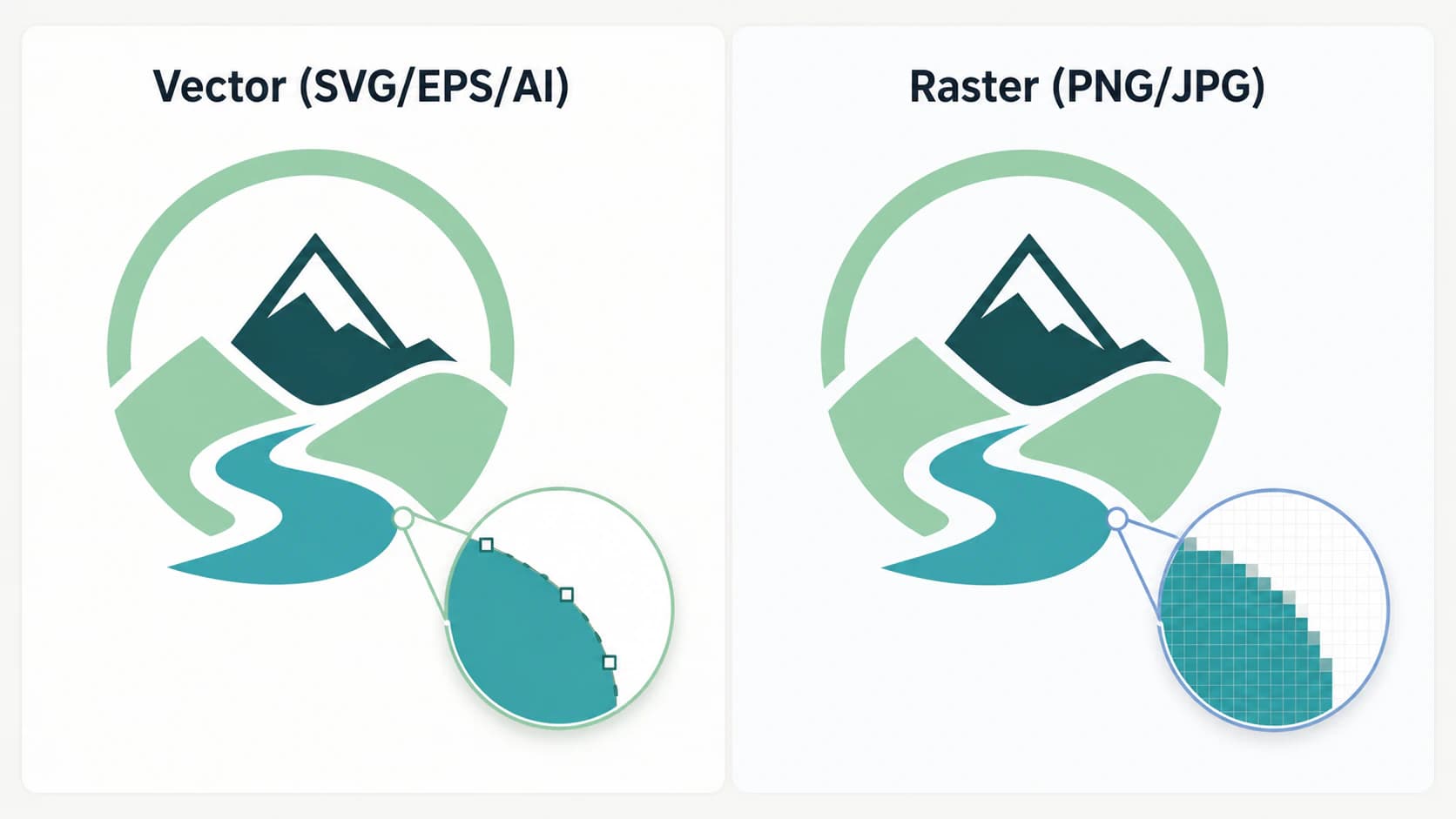
이 구분이 일상적인 로고 문제 대부분을 설명합니다. 픽셀이 보이는 로고는 유효한 픽셀 크기 이상으로 늘린 래스터인 경우가 많습니다. Adobe의 현재 형식 문서는 JPEG를 손실 형식, PNG를 투명도 지원 무손실 형식으로 설명합니다. 업체의 파일 거부는 색상, 폰트, 도련, 앱별 요건 때문일 수도 있으므로 정확한 사양을 문의하세요.
형식별 간단한 설명
실제로 자주 만나는 것은 여섯 가지입니다.
| 형식 | 종류 | 적합한 용도 | 부적합한 용도 |
|---|---|---|---|
| SVG | 벡터 | 웹사이트, 앱, 파비콘 | 일부 인쇄 업체는 받지 않음 |
| EPS | 벡터 | 기존 인쇄와 이를 요청하는 업체 작업 | 일상적인 웹 전달 |
| AI | 벡터 | 편집 가능한 원본·마스터 | 공유나 업로드(Illustrator 필요) |
| 벡터 또는 래스터 | 인쇄 업체 전달, 이식성 있는 공유 | 웹 사용. 실제로 벡터인지 확인 | |
| PNG | 래스터 | 웹, 소셜, 이메일, 투명 배치 | 인쇄, 큰 크기, 확대 |
| JPG | 래스터 | 빠른 미리보기, 배경이 중요하지 않은 이메일 | 일반적인 로고(투명도 없음, 손실 압축) |
사양표가 가볍게 넘기는 두 가지 주의점이 있습니다. PDF는 저장 방식에 따라 벡터이거나 래스터이므로 "PDF가 있다"고 사용할 수 있는 마스터가 보장되지는 않습니다. 그리고 AI와 EPS는 직접 열 수 없어도 보관해야 합니다. 나머지 형식을 모두 거기에서 내보낼 수 있기 때문입니다.
EPS 확장자 역시 안의 모든 오브젝트가 벡터라는 증거는 아닙니다. 업체가 파일을 의심한다면 다시 보내기 전에 EPS가 실제 경로인지 삽입 이미지인지 확인하세요.
작업별로 사용할 형식
형식 비교가 정의 속에 묻어 두는 실용적인 부분입니다. 파일이 아니라 작업에서 시작하세요.
| 필요한 용도 | 사용할 형식 | 참고 |
|---|---|---|
| 웹사이트 로고 | SVG | 작고 모든 화면에서 선명함. CMS가 거부하면 고해상도 PNG |
| 파비콘 | SVG 또는 PNG 세트 | 현대 브라우저는 SVG, 오래된 것은 여러 크기의 PNG 필요 |
| 이메일 서명 | PNG | 투명 배경, 고정 표시 크기 |
| 소셜 프로필과 게시물 | PNG | 고해상도와 투명도. 플랫폼이 압축하므로 크게 업로드 |
| 명함, 전단, 인쇄 | 업체 지정 PDF, EPS, AI | 인쇄 업체의 색상, 도련, 폰트, PDF 프리셋 요건 준수 |
| 간판, 배너, 차량 래핑 | EPS 또는 PDF | 품질 손실 없이 어떤 크기로도 확대 |
| 티셔츠와 굿즈(실크스크린) | EPS 또는 AI | 잉크 색상마다 벡터 레이어 하나 |
| 자수 | 업체 지정 원본, 이후 스티치 파일 | 기계용 디지타이징 필요. 받는 원본은 업체마다 다름 |
| 레이저 커팅이나 비닐 | SVG 또는 다른 벡터 | 기계가 따라갈 닫힌 벡터 경로 |
| 로고 편집이나 변형 제작 | AI 또는 레이어 SVG/EPS | 평면 래스터가 아니라 항상 마스터 편집 |
업체가 "벡터로 보내 달라"고만 하면 어떤 형식과 설정을 받는지 물어보세요. 웹사이트가 SVG를 받는다면 보통 가장 유연한 로고 전달 형식이며, 플랫폼이 SVG를 거부하면 PNG를 사용합니다.
세밀한 구성과 작은 마크가 모두 필요한 웹사이트에는 반응형 SVG 로고 조합을 준비하고 브라우저가 어떤 원본을 선택하는지 시험하세요. SVG를 선택했다고 글자가 자동 제거되거나 전환 너비가 선택되는 것은 아닙니다.
자수는 특히 업체에 따라 다릅니다. 예를 들어 Printful은 외부에서 디지타이징한 스티치 파일을 받지 않으며, 대신 자체 팀이 디지타이징할 고해상도 투명 PNG를 권장한다고 설명합니다. 다른 자수 업체는 AI, PDF, 기계 스티치 형식을 요구할 수 있습니다. 일반적인 로고 형식 표보다 업체 사양이 우선합니다.
에나멜 핀은 확장자만 고르지 말고 핀 제조업체용 벡터 작품을 준비하세요. 평면 PNG나 JPG만 남았다면 에나멜 핀 작품 변환기로 편집 가능한 도형을 얻어, 제조업체의 교정 시안을 요청하기 전에 검사할 수 있습니다.
직조 의류 라벨은 치수가 있는 로고 시안을 준비해 보이는 면을 접힘과 봉제 공간에서 분리하고, 선택한 제작자가 받는 형식으로 내보내세요.
PNG만 있을 때 할 일
형식 안내가 말하고 싶어 하지 않지만 가장 흔한 상황입니다. AI나 EPS 마스터가 없습니다. 오래전에 만들었거나 Canva에서 만들었거나, PNG만 준 AI 로고 생성기로 만들었거나, 누군가 오래된 웹사이트에서 가져온 파일일 수 있습니다. 이제 인쇄 업체나 굿즈 공급업체가 벡터를 원합니다. 처음부터 없었던 사람에게 "마스터 파일을 안전하게 보관하세요"라는 조언은 쓸모없습니다.
유일한 사본이 오래된 Windows 아이콘이라면 ICO에서 편집 가능한 SVG 복원 절차로 시작하세요. ICO에는 보이는 파비콘 크기 미리보기보다 더 큰 표현이 들어 있을 수 있습니다.
두 가지 탈출구가 있습니다. 벡터를 다시 만들거나 복원하는 것입니다.
다시 만들기는 디자이너나 자신이 처음부터 로고를 벡터로 다시 그리는 것입니다. 이것이 유일한 선택이라고 쓰인 경우가 있습니다. 널리 퍼진 설명은 더 나아가 래스터 로고를 자동으로 벡터로 바꿀 수 없으며 "PNG-SVG"를 약속하는 모든 도구는 가짜라고 주장합니다. 반은 맞지만 틀린 나머지 반이 중요합니다.
나쁜 변환기에 대한 경고는 사실입니다. 일부는 PNG를 SVG 파일 안에 감쌀 뿐입니다. 결과의 확장자는 .svg여도 여전히 위장한 픽셀이며 확대하는 순간 흐려집니다. 피해야 할 "가짜 벡터"입니다. 열어 확대했을 때 가장자리가 각져 보인다면 실제 벡터가 아니라 삽입 이미지입니다.
인쇄 업체가 JPG를 EPS로 바꾸라고 구체적으로 요청한다면 같은 규칙을 사용하세요. 보내기 전에 EPS가 실제 경로를 포함하는지 확인합니다.
하지만 실제 AI 벡터화 도구는 감싸지 않고 추적합니다. 디자이너가 그릴 법한 실제 편집 가능한 벡터 경로로 로고를 재구성하며, 깔끔하게 확대되고 Illustrator, Figma, Inkscape에서 열립니다. 보통 평면 도형과 깔끔한 가장자리로 된 로고에서는 이 복원이 잘 작동하며, 오후 내내 다시 그리는 대신 몇 초가 걸립니다. 다시 만들지 복원할지는 래스터의 깨끗함과 마크의 복잡도에 달려 있으며 로고 벡터화 방법이 바로 그 판단을 설명합니다.
PerfectVector 사용 예
래스터 로고에서 시작하고 업체가 벡터를 필요로 한다면 PerfectVector는 그 복원을 위해 만들어졌습니다. 로고를 노드가 적고 깔끔한 벡터 경로로 재구성해 웹용 SVG로 내보내거나 인쇄 업체에 전달할 수 있습니다. 경로가 실제이므로 SVG로 감싼 픽셀 이미지가 아니라 편집 가능한 마스터를 되찾습니다.


PNG 로고를 실제 벡터로 바꾸고 직접 경로를 검사하거나, 로고 이외의 작품에는 일반 이미지 벡터 변환기를 사용하세요. 신용카드 없이 첫 이미지를 무료로 변환할 수 있습니다. 깔끔한 벡터를 되찾으면 형식 안내가 처음부터 가정하던 쉬운 위치에 도달합니다. 마스터는 하나이고 다른 모든 형식은 간단히 내보내면 됩니다.
분명히 알아둘 한계
- 벡터화 도구의 품질은 입력 래스터에 달려 있습니다. 선명하고 대비가 높은 로고는 깔끔하게 복원됩니다. 너무 작거나 흐리거나 심하게 압축된 JPG는 디자이너의 손길이 필요할 수 있습니다.
- 사진 같거나 그라데이션이 많은 로고는 잘 벡터화되지 않습니다. 마크가 실제 사진이나 복잡한 그라데이션 일러스트라면 래스터로 유지하고 고해상도 PNG를 사용하세요.
- 복원 결과가 항상 픽셀 단위로 동일하지는 않습니다. 벡터화는 도형을 충실히 재구성하지만, 모든 곡선이 정확히 같아야 하는 상표라면 디자이너가 원본과 대조하도록 하세요.
- 한 형식이 모든 것을 할 수는 없습니다. 하나의 PNG를 인쇄에 쓰거나 하나의 EPS를 웹에 쓰려는 유혹을 피하세요. 마스터를 보관하고 용도마다 내보냅니다.
자주 묻는 질문
로고에 가장 좋은 파일 형식은 무엇인가요? 최고의 형식 하나는 없고 용도에 따라 다릅니다. 편집 가능한 벡터 마스터를 보관하고 검증한 전달용 사본을 내보내세요. 허용하는 웹사이트에는 SVG, 인쇄 업체에는 요청한 정확한 PDF/EPS/AI 사양, 래스터 전용 플랫폼에는 적절한 크기의 PNG입니다. 업체가 "벡터"를 요청하면 형식, 색상 공간, 폰트, 내보내기 프리셋을 물어보세요.
로고는 PNG와 SVG 중 무엇이어야 하나요? 웹사이트는 플랫폼이 지원하면 SVG입니다. 어떤 크기에서도 선명하고 빠르게 로드되기 때문입니다. SVG를 받지 않거나, 투명 배경과 고정 크기가 필요한 소셜 미디어와 이메일 서명에는 PNG를 사용하세요. SVG는 벡터이고 PNG는 래스터입니다.
로고에는 PNG와 JPG 중 무엇이 더 좋은가요? 거의 모든 경우 PNG입니다. PNG는 투명 배경을 지원해 어떤 색상 위에도 깔끔하게 놓이고 압축이 가장자리를 선명하게 유지합니다. JPG는 투명도가 없어 로고 뒤의 흰색 상자 문제를 만들며, 손실 압축이 가장자리를 부드럽게 합니다. 배경이 중요하지 않은 빠른 미리보기에만 JPG를 사용하세요.
PNG 로고를 벡터(SVG 또는 EPS)로 변환할 수 있나요? 네. 실제 벡터화 도구를 사용하세요. PNG를 SVG 안에 삽입하는 변환기는 실제로 확대되는 것이 아니므로 피합니다. 실제 AI 벡터화 도구는 로고를 편집 가능한 경로로 추적해 SVG, EPS, PDF로 내보낼 수 있습니다. 깔끔한 평면 로고에 가장 잘 맞고, 매우 낮은 해상도나 사진 같은 로고는 디자이너의 재작업이 필요할 수 있습니다.
디자이너에게 어떤 로고 파일을 요청해야 하나요? 편집 가능한 벡터 마스터, 적절한 경우 윤곽선으로 바꾼 전달용 사본, 실제 채널에서 바로 사용할 수 있는 내보내기를 요청하세요. 보통 디지털용 SVG와 투명 PNG, 인쇄 업체가 지정하는 PDF/EPS/AI입니다. 색상 변형과 폰트·라이선스 정보도 요청하세요. 평면화되거나 윤곽선으로 바꾼 사본을 배포해도 편집 가능한 마스터는 보존합니다.
출처
- W3C: SVG 2: SVG의 벡터, 텍스트, 래스터 이미지 콘텐츠 모델입니다.
- Adobe: Photoshop 이미지 기초: 래스터·벡터 구분과 일반 벡터 형식입니다.
- Adobe: Photoshop 지원 이미지 파일 형식: JPEG와 PNG의 압축 및 투명도 동작입니다.
- Printful: 직접 디지타이징한 자수 파일을 사용할 수 있나요?: PNG를 받아 내부에서 디지타이징하는 업체별 예시입니다.
- Printful: 자수 디지타이징이란 무엇인가요?: 원본 작품에서 기계가 읽을 수 있는 스티치 데이터로 변환하는 과정입니다.
- W3C: SVG 삽입 콘텐츠: SVG에도 래스터 데이터가 들어갈 수 있어 여전히 검사가 필요한 이유입니다.
형식 질문은 두 부분입니다. 벡터 마스터가 있다면 위 표로 작업에 파일을 맞추면 됩니다. 없다면 먼저 벡터를 복원하고 간단히 내보낼 수 있는 상태로 돌아가세요. 어느 쪽이든 보관할 로고는 편집 가능한 것이어야 합니다.